


|


GTIN
Colloquially, many know GTIN as a barcode, but technically, GTIN is the number found beneath the barcode symbol itself, and can therefore also be used for other technologies such as 2D barcodes and RFID tags.
Colloquially, many know GTIN as a barcode, but technically, GTIN is the number found beneath the barcode symbol itself, and can therefore also be used for other technologies such as 2D barcodes and RFID tags.
In this guide, we show you how to create your packaging master data in GS1Trade Packaging.
The process consists of four steps:
A product corresponds to the physical item that will be placed on the market.
The product hierarchy typically consists of the base unit (sales item), case unit and pallet.
You must create GTINs for all product levels that exist in your hierarchy.
Note: Most often, GTIN is only found on the base unit and case. If a pallet GTIN does not exist, simply create the base unit and case.
In this guide, we use a jar of jam as an example. The jam is packed in cases on a pallet. The product hierarchy therefore consists of the following:

Here's how to do it:
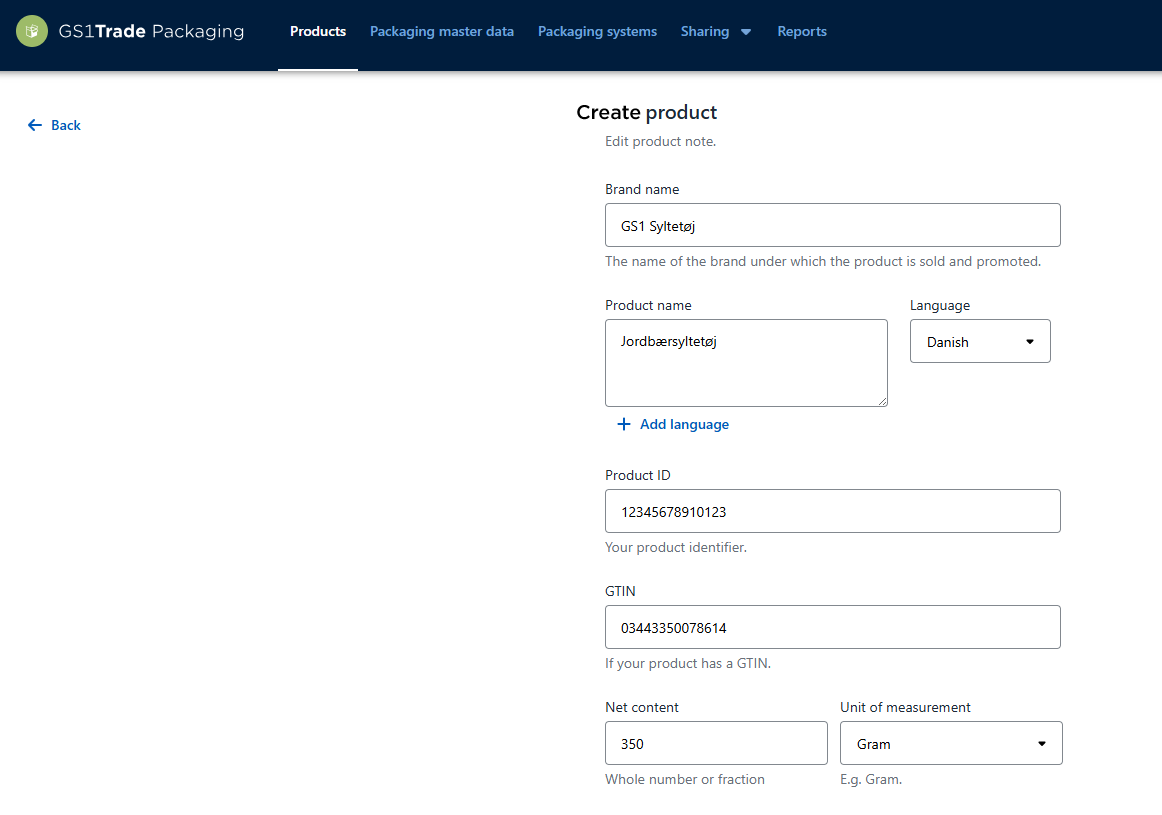
Go to the tab Products → Select Create new → Create manually.
Enter the following information:
In the following example we are creating the consumer unit.
Do you need to share packaging data for this product with a customer?
Go to the tab Sharing settings on the product.
If you only use GS1Trade Packaging, please add the customers with whom you want to share the packaging data here.
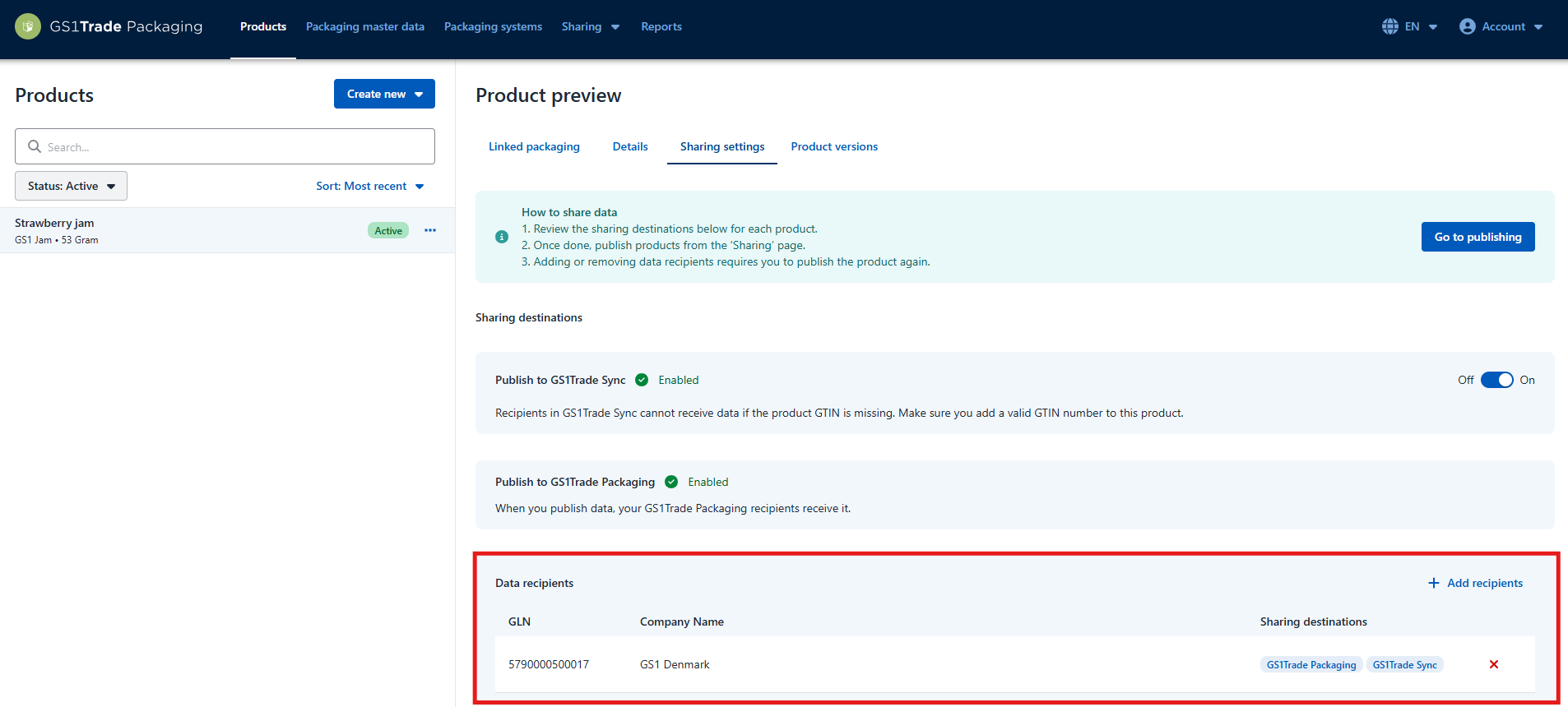
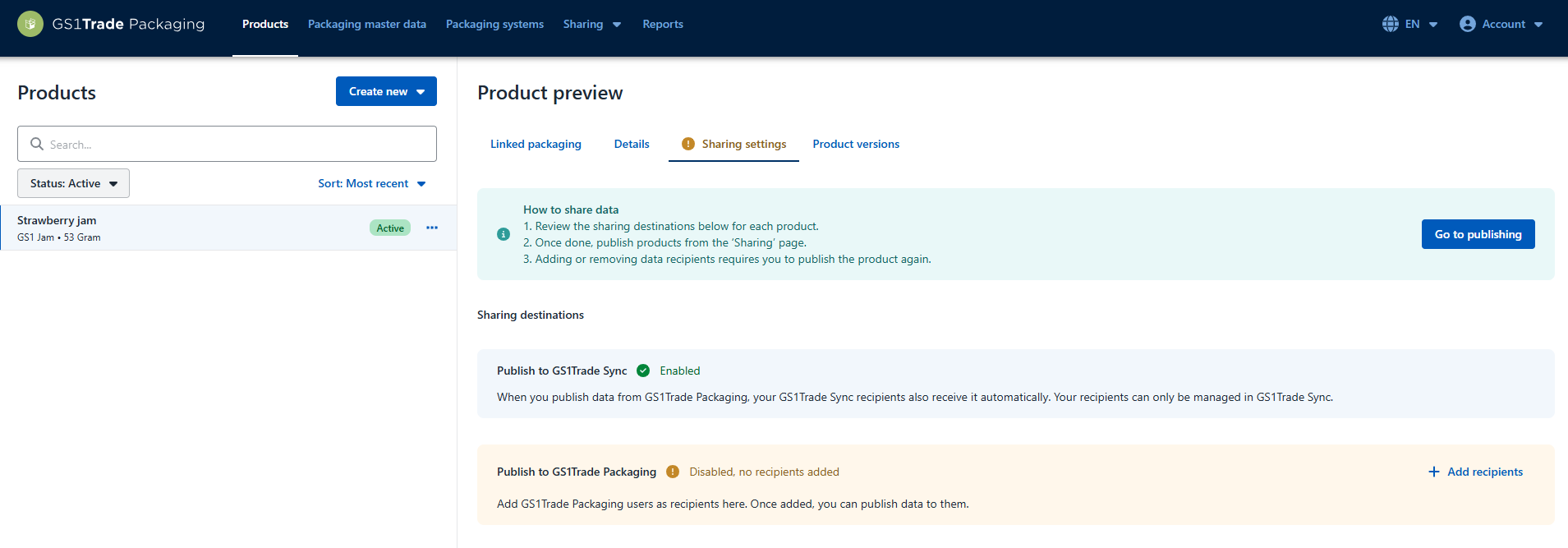
If you also subscribe to GS1Trade Sync then you don't need to add data recipients in GS1Trade Packaging (unless your customers specifically have asked to receive data in both systems).
When you publish the GTINs in Trade Packaging, the packaging data will automatically be transferred to GS1Trade Sync and added to the existing product master data.
You must ensure that correct data recipients are set up for your products in GS1Trade Sync.
Note: If the products do not already exist in Trade Sync, they will be created as drafts, after which you must add data recipients and publish the product before data is sent to your customers.
Learn more in this guide on How to Share Data in GS1Trade Packaging.
We start by creating the packaging for the base unit.
In this example, our jam product consists of a packaging with three components:
The label is an integrated component on the glass.
A integrated component is by definition a packaging component that is not designed to be separated from the main component in the context of waste sorting or transport.
Go to the tab Packaging Master Data > Select Create new > Create new component.
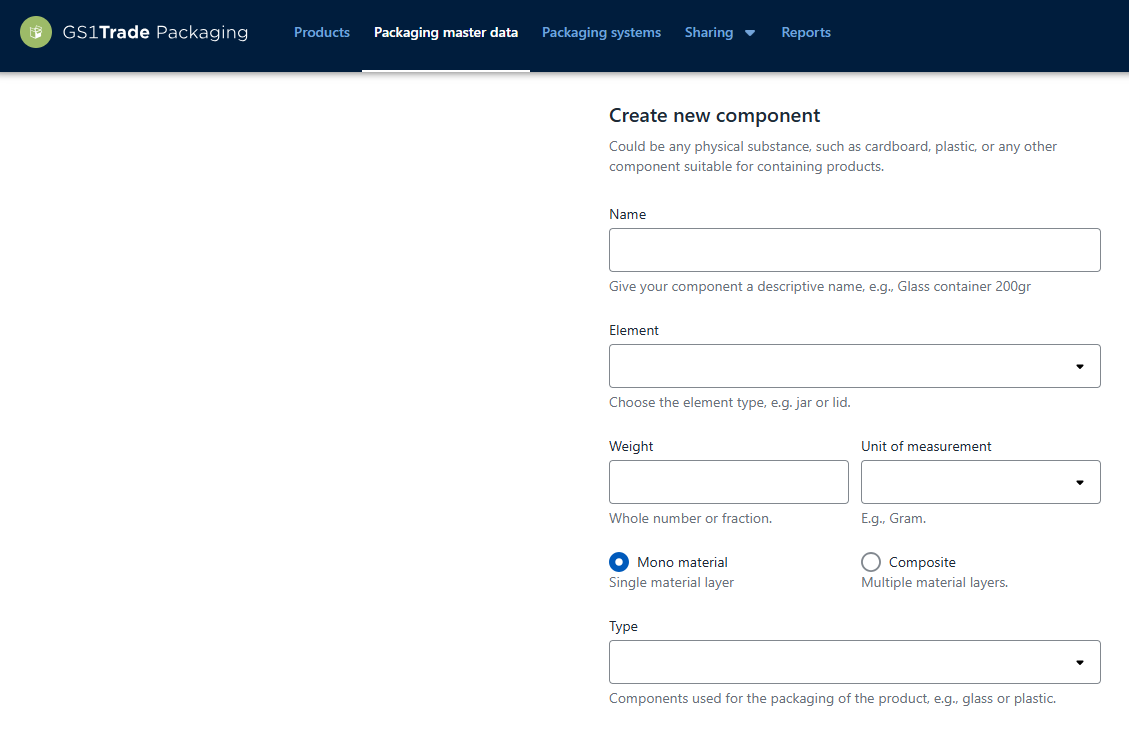
Enter:
Click Save.
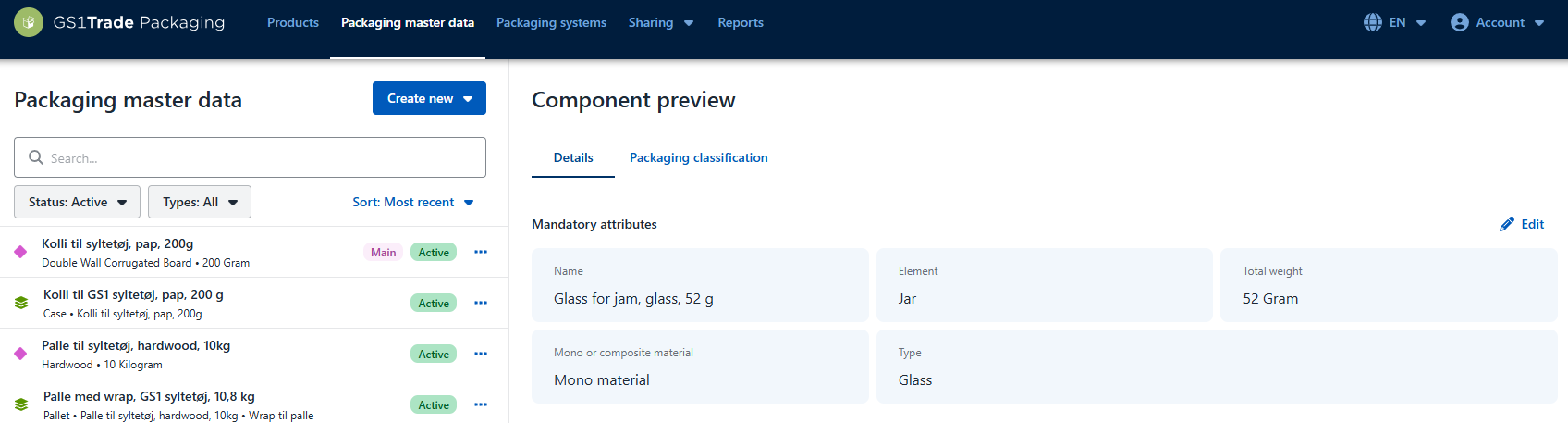
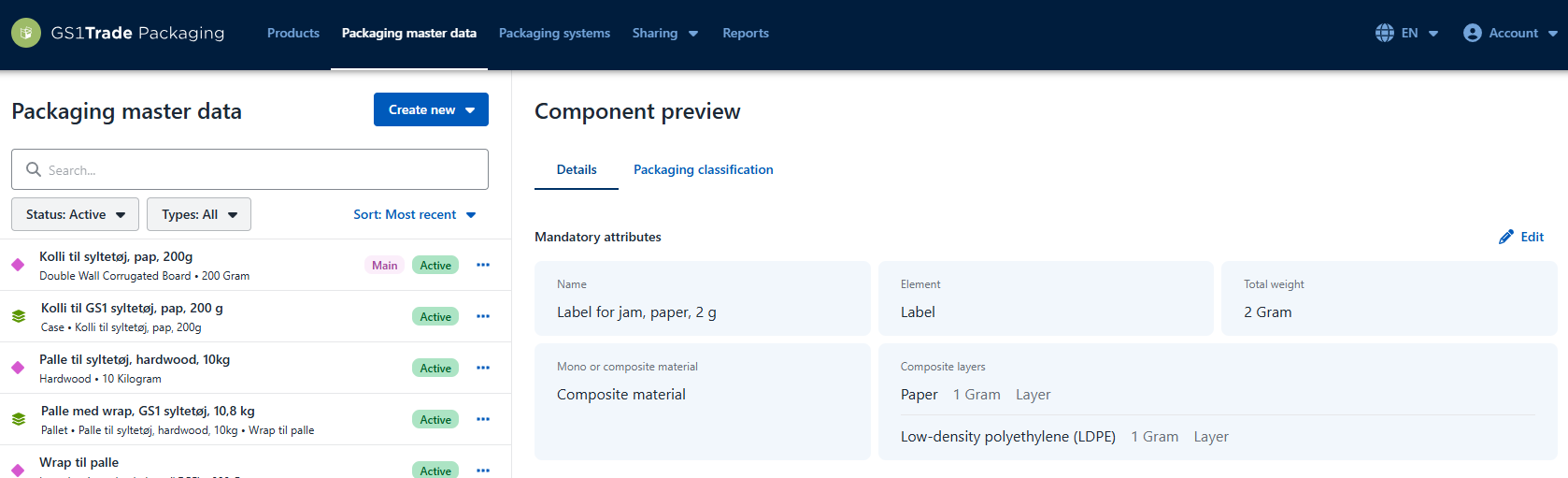
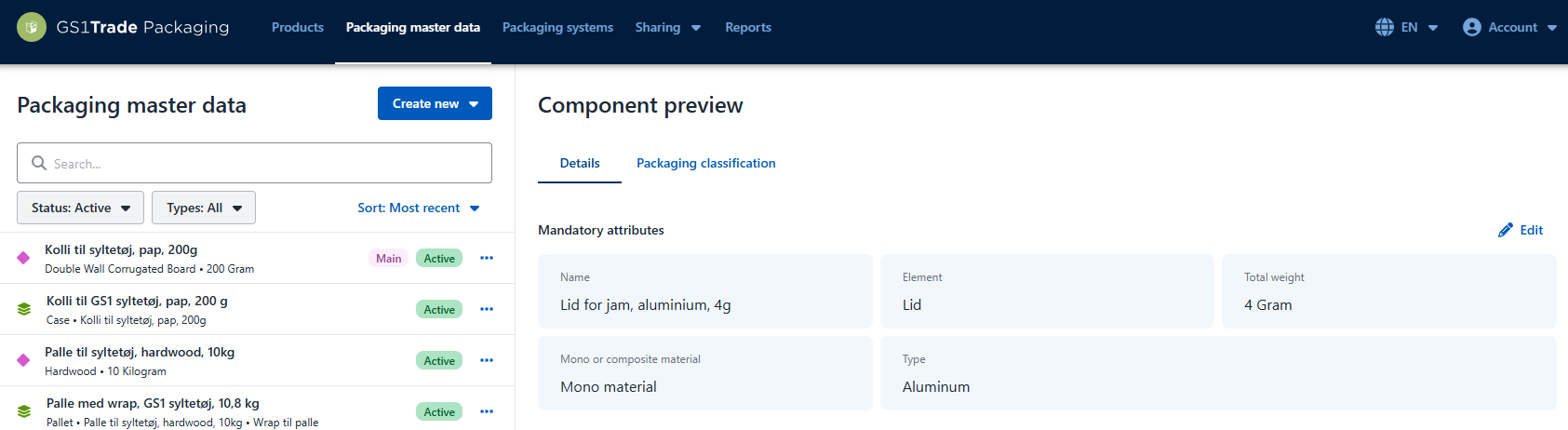
Before you assemble packaging units or perform environmental grading, it’s important to link main and integrated components.
Packaging with integrated components must be environmentally graded as one unit according to the Danish Environmental Protection Agency’s regulation.
How to do it:
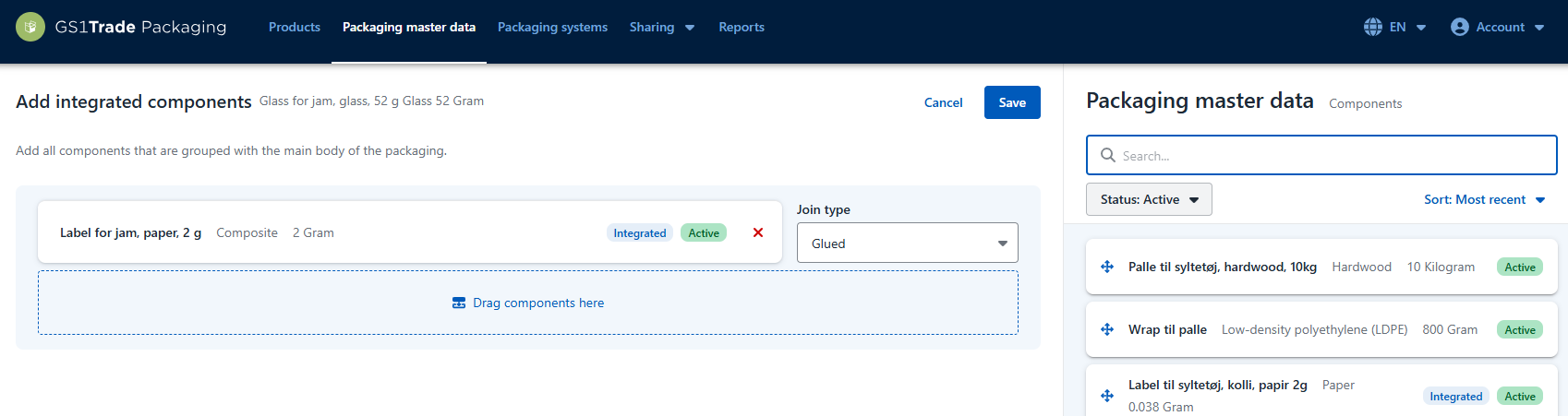
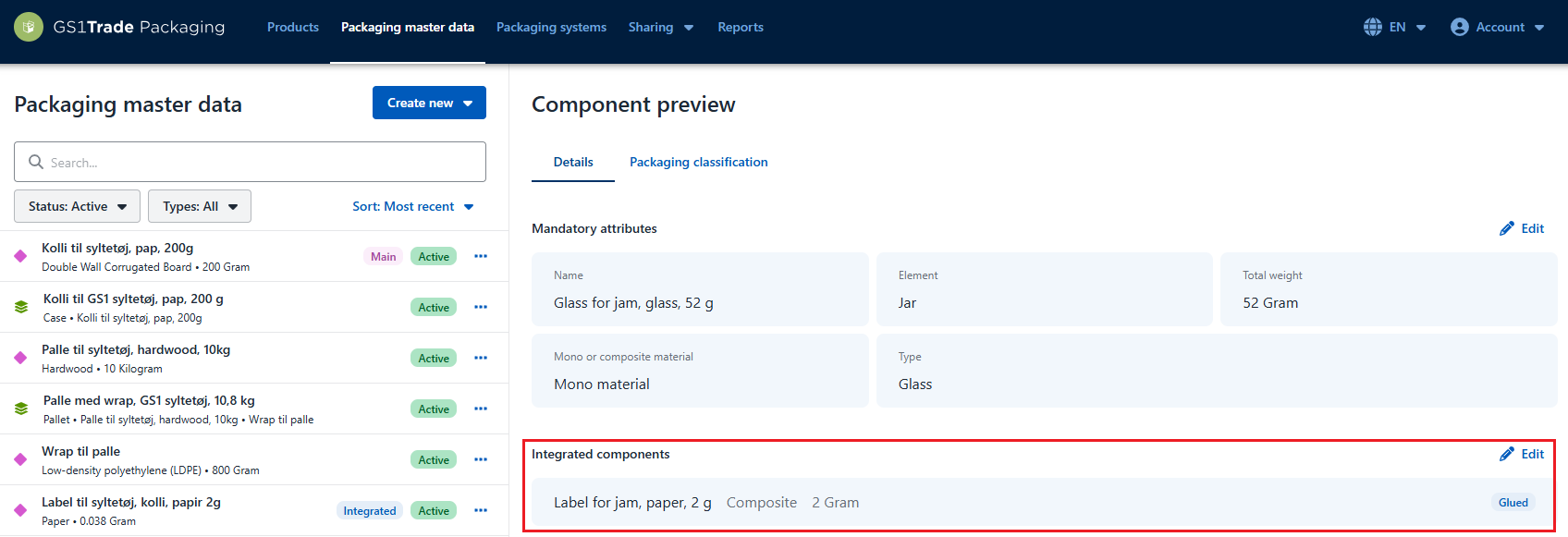
You have now created your packaging components and integrated one component onto a master component.
Now you are ready to classify the components according to the order of the Danish producer responsibility regulation. All components need to be environmentally graded for correct data sharing and/or reporting.
Here you can find the full guide on how to do environmental grading in GS1Trade Packaging.
Go to the tab Packaging classification and specify:
Next, combine your components (e.g. jar and lid) into a packaging unit.
Pay special attention to:
Repeat steps 2.1–2.4 for the case and pallet packaging.
You now have both packaging and products created in the system and you need to link the packaging unit that is unique to each GTIN.
Base > Base packaging
Case > Colli packing
Pallet > Pallet packaging
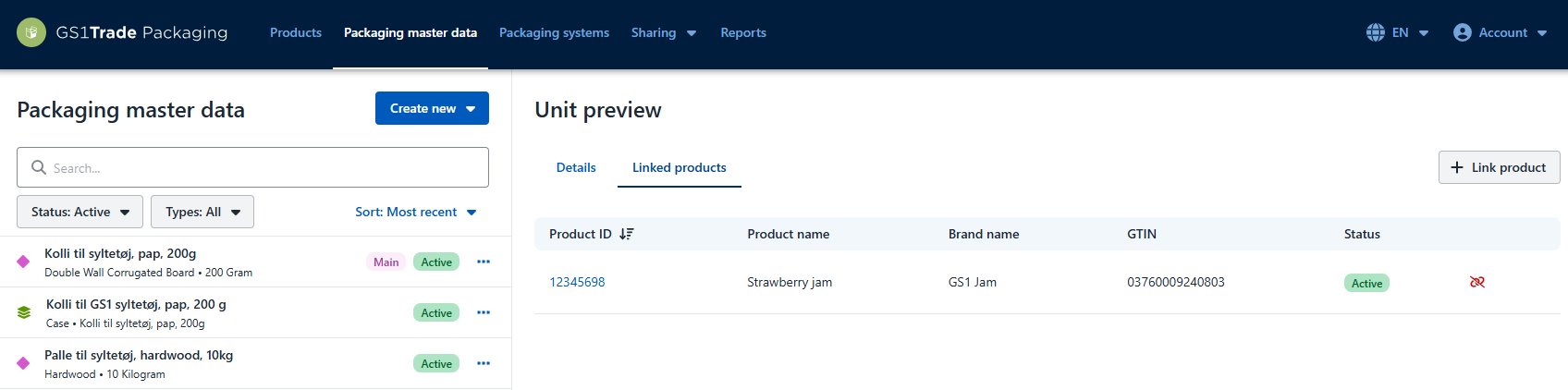
If you later update or improve packaging, you only need to maintain the data in only one place, and all linked products will automatically inherit the updates.
Finally, create a packaging system for the product hierarchy. If you only need to create base units with associated primary packaging the packaging systems might not be relevant for you.
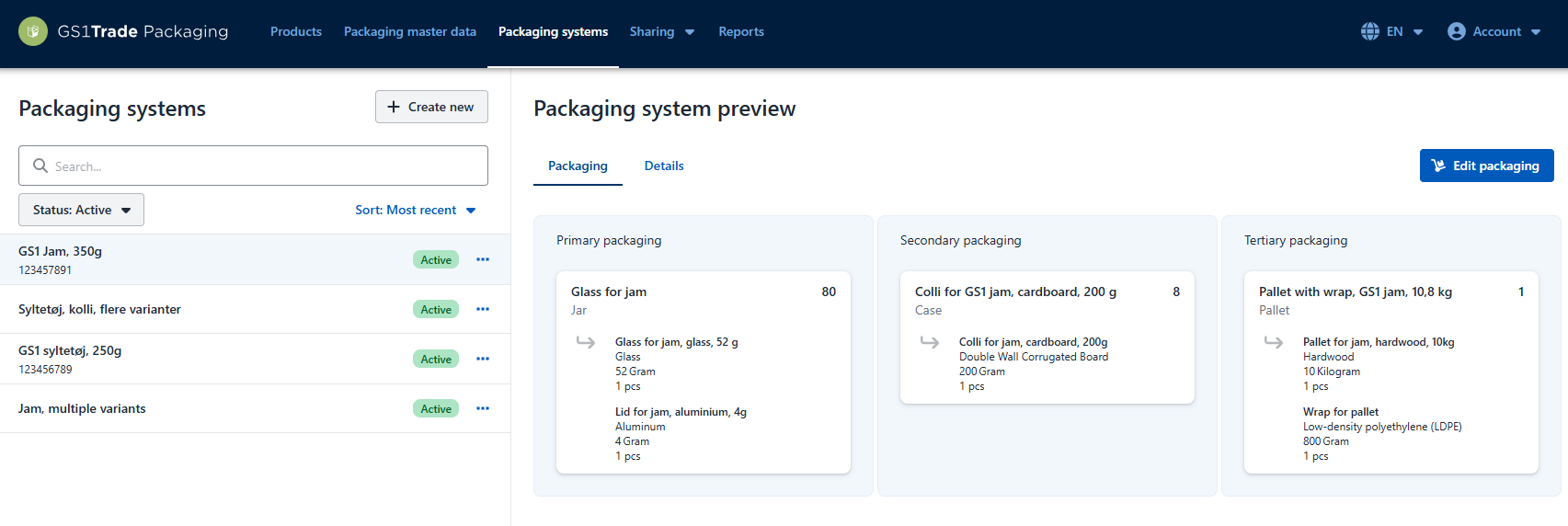
You have now created the complete packaging master data for your product.
At the moment the system will help you identify packaging units that are missing components, so that you easily can correct the issue and make sure your data is correct.
The errors are displayed directly in the Product overview next to the affected product. When you see an orange exclamation mark next to the product name, it indicates that errors need to be addressed.
The number shown on the icon indicates how many types of errors the product contains.

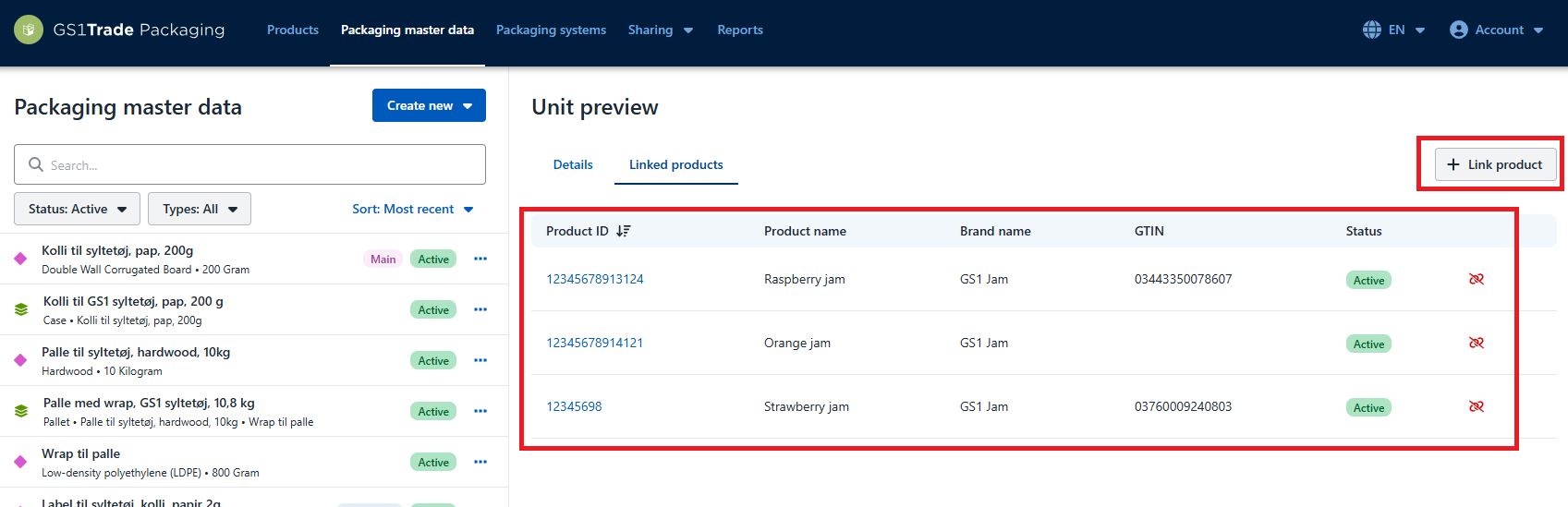
You can reuse packaging units for multiple GTINs. For example, if you have a product in different variants that use the same packaging. You can also reuse individual packaging components in several different units.
In the following example, three basic jam products (strawberry, raspberry and orange jam) have been created but only one packaging unit. The same packaging is used for the three products, which is why it is associated with all three.
Packaging data that is no longer relevant or valid must be marked as Inactive. This ensures that the system only contains data that reflects current packaging use.
This applies to the following:
When data is marked as Inactive, it means that it is no longer actively used in the packaging flow, but is retained in the system for traceability and historical reference.
For this reason, it is not possible to delete products or packaging data. Instead, mark them as Inactive.
If data has been created by mistake, it must be handled in the same way.
You should not make any further updates to inactive data unless it is made active again.
We further recommend that you remove all associations with inactive components or units.
Do you still need help? Reach out to our support team. We are always ready to help.


