|


GTIN
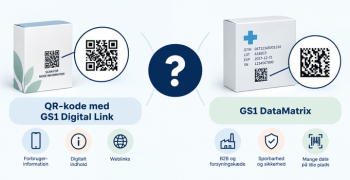
Colloquially, many know GTIN as a barcode, but technically, GTIN is the number found beneath the barcode symbol itself, and can therefore also be used for other technologies such as 2D barcodes and RFID tags.
Colloquially, many know GTIN as a barcode, but technically, GTIN is the number found beneath the barcode symbol itself, and can therefore also be used for other technologies such as 2D barcodes and RFID tags.
How do you create data correctly for the Swedish market? Here we start from a food product to better describe how relevant nutritional information should be provided in addition to the data that is mandatory regardless of the type of product.
In Sweden, as here in Denmark, there is a data pool for storing product family data for Swedish retailers. The Swedish datapool is called Validoo and is owned by GS1 Sweden. The Validoo Item (data pool) belongs to “MyValidoo”, which you must register for. In addition, there is a measuring and weighing service, called Validoo Q-Lab, and it is a requirement of some Swedish retailers that samples of the products on which data are created be sent to Validoo Q-Lab for quality assurance purposes.
Please contact GS1Trade Sync on info@gs1.dk, if you wish to receive a MyValidoo account.
If you have any questions about registering for Validooq-lab, please contact GS1 Sweden by phone +46 8 50 10 10 00 or at kundservice@gs1.se.
All other questions regarding data creation and maintenance of data in GS1Trade Sync for the Swedish market can be attributed to GS1 Denmark.
All further documentation is freely available for download on GS1 Sweden's website. Here you can find decoder lists, validation rules, field descriptions and a guide describing the many different packaging types. Click here for link to the general information.

The following describes how to create the base unit. The basic unit can very often be equated with the unit sold to the end consumer in the supermarket (here also referred to as the consumer unit).

<Nyt Produkt>Once logged in, click on the button.
During Basic data fill in the fields' GTIN ', 'Device description', 'Target Market country code' and 'Private or public?'.
In the latter field<Privat>, select first and then fill in the field 'Data Recipient' with the GLN num ber of the company that will have access to watch/receive data. At least one data recipient must be specified (later in the process it will be possible to specify more data recipients). Of course, data can also be sent as “public”.
<Næste>When the fields are filled in as shown below, click the button.

Choose one Product Category (GPC Category Code) by clicking in the empty field below the field name.
In English, type a search text that matches the product to be created (here is the example 'Milk'). Then press the button <Søg>.


Select the desired GPC Brick code (Above is selected “Milk (refrigerant)”). Press<Gem>.

Proceed by pressing <Næste>.
<Opret produkt>Confirm by clicking.
On the right side of the system window you will see a checklist.
Below each error description, you will see a button that will take you directly to the field that needs to be filled in. It may be an idea to fill in all the fields using this troubleshooting tool.

As seen in the above screenshot, one has the error list on the right.

The range of basic information should be completed as follows.
Field Name - To be completed with
Is the product a basic unit? : Yes.
Consumer device? : Yes.
Dispatch unit? : No. The device is later packaged in a colliery unit.
Billing unit? : No or Yes.
Ordering unit? : No. The consumer unit is hardly the ordering device. It's the collicarton, which is it. This packaging device is created later.
Manufacturer GLN: Enter your own company's GLN number.
Manufacturer name: Enter your company name.
Contact Info: GLN: Enter your own company's GLN number. All contact information must be completed only if it appears on the packaging of the goods — otherwise not.
Contact Information: Contact Name: Here the name of the company or person is indicated, which is suitable for the choice in Contact type. All contact information must be completed only if it appears on the packaging of the goods — otherwise not.
Contact Information: Address: The address of the company or person, which is suitable for the chosen one contact role. All contact information must be completed only if it appears on the packaging of the goods — otherwise not.
Contact information: Contact role: Here, a contact role must be selected. You can only choose between consumer support and customer support. All contact information must be completed only if it appears on the packaging of the goods — otherwise not.
Regarding the internal part number: Field “3060 Additional product identification or code”... There is only a requirement to fill in the supplier's internal part number of the unit that is the ordering unit. If you want to fill in the internal part number of all units in the hierarchy, the numbers must be different on each unit.
Here more data recipients (customers) can be added.

<Tilføj ny version>If more data recipients (customers) need to be added - click on the button.
For example, type part of a company name in the Data Recipient field and select the desired data recipient from the drop-down list.

Click on <Næste>.

Select 'New product with data copied from' and which data recipient data to copy from. Finally, press<Gem>.
This procedure must be repeated for each data recipient (trading partner) to be deployed.


If the product contains allergens, the fields below must be completed. An unlimited number of allergens can be listed.

Field Name - To be completed with
Allergen Type: Here is a code list. Select a code from this list: T4078. Only the allergens with x in the column “Used in Sweden” can be selected.
Presence of allergen: Only 'Contains' or 'Can Contain' must be selected here.
Here you need to specify the type of barcode symbol with which the item is labeled.

Since the GTIN of the consumer device is 13-digit, the fields must be filled in as shown above.
What the field Data carrier: Barcode type must be completed with for Sweden shown in this code list: T4310.
Here all the fields in the table below should be indicated. Be sure to apply grams as a unit of measurement for net and gross weight. Be sure to choose millimetres as a unit of measurement in the Depth, Width, and Height fields.

Here, details of the type of packaging the consumer device is packaged in are indicated.


Field Name - To be completed with
Packaging Type: Here is completed with a code/designation from this code list: T0137.
Packaging Material: Code: Here the code of the MATERIAL from which the packaging is made is indicated. Overview of approved codes is very limited. Only the codes that are crossed out may be used. The list can be viewed here: T1188.
Packaging Material: Weight: Here the weight of the selected packaging material is indicated in grams.
Here you need to indicate the declared nutritional content, which is indicated on the label of the consumer device. Below you will see how the nutritional information is entered. If more need to be specified than the seven mandatory, they can be added by pressing the three-dot button and then <+Add New Group>.

Field Name - To be completed with
Nutritional content: Component: Code list with approved nutrition types can be found here: T4073.
Measurement Accuracy: Only about or less than should be selected here.
Nutritional content: Value (and unit of measurement): The indication of the value of the nutritional content, e.g. “Fat 1.2 grams”.
Cooking type: Here, only PREPARED or UNCOOKED may be selected, and it is typically Uncooked to be chosen.
Nutritional base quantity: Value: Choose per 100 grams or per 100 milliliters.
Nutritional Basis Quantity: Type: Choose “per measure” or “per serving”. As a rule, it is”per measure“, to be chosen.
The shelf life information is given as shown below. In the field Minimum shelf life from arrival [Days] indicate the minimum number of storage days guaranteed when the goods are delivered to the customer. In the field Minimum shelf life from production [Days] indicate the total shelf life in days from final production/packaging.

The only field that needs to be filled in below is Item available from: date. The field indicates from when the retail customer can purchase/order the product.

The list of ingredients of the food must be indicated in Swedish and with the Swedish language code, as shown below. First write “Ingredients:”. Remember to indicate allergens in BIG letters.

Indicate here whether the product is variable in quantity or not. If the answer is “yes”, the field should Variable Weight: Deviation Percentage be filled in with a percentage for how much the net content/net weight may vary by weight.

Field Is the packaging marked returnable? Complete with “No” unless there is a pledge mark on the packaging.
Then fill in the field Date Imprinted Packaging: Format Name with how the shelf life date is expressed on the packaging.
In the field Date marking on product select whether the shelf life date is “Best Before” or “Last Use”.
In the field Packaging Label: Environmental and Packaging Labelling the eco-label and the like shall be indicated on the packaging. It may be necessary to add more labelling codes — for example 'Keyhole label', 'EU Ecology Label', etc.
<Tilføj en anden gruppe +>Adding more brands is done by pressing the button.

Field Name - To be completed with
Is the packaging marked returnable? : Complete with “No” unless there is a pledge mark on the product.
Date printed on packaging: Format name: This indicates how the shelf life date is expressed on the packaging. For example: dd.mm.yyyy or ddmyy.
Date marking on product: Choose between “Best Before” or “Last Use Date”.
Packaging Label: Environmental and Packaging Labeling: Look in this code list: T3777. Only codes marked with X in the list may be used.
Indicate the intrastate number and the country of origin of the product. Intrastate numbers can be found here.

The fields exist Item Name, Functional name and Trademark. It is important to comply with the Swedish rules for filling in these fields. The rules will be specified in the table.


In the field Description of size the value of the declared net content of the goods is written. Please note that the language code must be “Swedish”.

The table shows the fields to fill in and how.


Field Name - To be completed with
Relevant for price comparison basis: Complete with “Yes”.
Price comparison: Quantity: Here the value of the net content is given, as well as grams as a unit of measurement.
Price comparison: Content code: Here, for example, select “Per kilogram”. In the code list, see which codes can be selected from: T0145.
Specify the minimum and maximum temperatures, and Temperature: Type code.

As the example shows, there are still defects on the base unit. These errors related to missing shipping unit, billing unit, and ordering unit will disappear when “yes” is selected on either the packaging unit or the pallet.
So, on the base unit, these three errors can be ignored.
After the creation of the basic unit/consumer unit, the packaging unit (pure package) must be created. This unit is both the ordering unit, the billing unit, and the shipping unit.
Please note that one does NOT provide pallet information at this level, subsequently creating a pallet with its own GTIN. (Here you should go to 5. Creating the GTIN labeled pallet).
Now press the button <Opret næste pakkeniveau> for creating the packaging device.

Under Basic data, fill in GTIN on the packaging unit and in the field Description of device, that it is a packaging unit (clean package).
The Fields Target market country code, Private or public? and Data Receiver is filled in with the information indicated on the base unit.
Press <Næste>.

Here should be the field Number of the product concerned contained in this unit is filled in by the number of consumer units packed in the packaging unit.
In the example, 6 liters of milk are listed in the packaging unit.
Then press <Næste>.

During confirmatory pressure<Opret produkt>.
Pressing the button displays <Hierarki>a graphical representation of the package hierarchy. You can navigate between the devices in the package hierarchy by pressing either Packaging unit or Base unit. The light blue color indicates that you are currently on the packaging device.

Here, fill in the fields as shown below.
Save data and feel free to press the button at <Tjekliste>the bottom right.


The 'checklist' appears on the right side of the system window.
You can conveniently click on the buttons below the individual error messages, for example <Dybde>by which you will be directed directly to the field. Depth under 'Dimensions', where the depth can thus be filled in.
All relevant points for the different hierarchy units will be described.


The field name Data carrier: Barcode type the code of the barcode type on which the packaging unit is imprinted must be entered. Overview of walkable codes can be found here: T4310. Please note that EAN-13 may not be selected if the GTIN starts with a number other than 0. Then there is talk of an ITF-14 or GS1-128.
Here the dimensions and weight of the packaging unit are indicated. Remember that height, depth and width are indicated in millimeters, while gross and net weight must be indicated in grams.


In this screen, on the packaging unit (collet unit), select the packaging type collie unit (box, carton, box, tray, etc.). In addition, information about the packaging material and its weight must be indicated.

Field Name - To be completed with
Packaging Type: Select an approved type from this code list: T0137.
Packaging Material: Code: Select a code from this code list: T1188. Only those marked with crosses are allowed to be selected. Please note that this field does not need to be completed if the colliery unit is not a consumer unit.
Packaging Material: Weight: Indicate the weight of the “empty” packaging material in grams. Please note that this field does not need to be completed if the colliery unit is not a consumer unit.
Here, on all shipping units, you must specify the Stacking Factor and Stacking Factor: Type Code.

Field Name - To be completed with
Stacking factor: The number of cartons (packages) that can be stacked on top of each other.
Stacking Factor: Type Code: A code is given here for the conditions under which the stacking factor applies. Is it during transportation, or is it during storage in a warehouse/in a store. Here's a link to the codes that Swedes accept: T3848. Only those codes with a tick next to the list are accepted.
Field Item available from: date be filled in with the date from which the customer can start ordering the product. This date must be equal to or later than the base unit date.

Field Is the packaging marked returnable? be filled with “No” unless there is a pledge mark on the packaging. Then fill in the field Date Imprinted Packaging: Format Name with how the shelf life dates are expressed on the packaging. In the field Date marking on product select whether the shelf life date is “Best Before” or “Last Use”.


In Sweden, any package hierarchy on which data is created for grocery shopping is required to be equipped with a pallet labelled with its own 14-digit GTIN. It is at this level of the hierarchy that the pallet information is specified — and only at that level.
<Opret næste pakkeniveau>Be sure to stand on the packaging unit in the hierarchy, and then press the button.

Fill in the below screenshot with GTIN on the pallet as well as select Pallet in the Device Description field.
Press <Næste>.

Here indicate how many packaging units (packages) are packed on the pallet in the field named Number of the product in question contained in this unit.
Then press <Næste>.
<Opret produkt>Under 'Confirmation' press the button.

The fields below are filled in.
Please note that the supplier's internal part number should not be specified if the pallet is not an ordering unit. If an internal part number is to be entered in the “3060 Additional product identification or code” field, this must not be the same as for other units in the package hierarchy. If necessary, add P for pallet.


The field name Data carrier: Barcode type the code of the barcode type on which the packaging unit is imprinted must be entered. Overview of walkable codes can be found here: T4310. Please note that GS1-128 must always be selected on the pallet.
Save data and move on.


Field Name - To be completed with
Packaging Type: Select the type of packaging that is wrapped around the pallet. For example, “Wrapped in plastic film”. List of packaging types can be viewed here: T0137.
Pallet type: Select the pallet type on which the packaging unit is delivered. List of pallet types can be viewed here: T2244.
Packaging Weight: To be filled with 25000 grams for a 1/1 EUR pallet.

Field Name - To be completed with
Stacking factor: Since we are at the pallet level, here is how many pallets can stand on top of each other. If 1 is written, it means that the pallet cannot be stacked.
Stacking Factor: Type Code: Here, select the conditions under which the specified stacking factor is indicated. Whether it is during transport, in storage, etc. Overview of approved types can be found here: T3848.
In the field Item available from: date indicate from when the customer can order the product/device. This time shall not be earlier than the date on the packaging unit or base unit.


Field Name - To be completed with
Number of whole layers contained in the device: Number of layers on the pallet.
Number of units contained in a whole layer: Number of collies/cartons per layer.
Press the button<Oversigt over publicering>.

Press the button<Publicer>.

Under 'Messages' on the system homepage you can see a status of the data you have sent to the Swedish and other markets.

As seen above, data is now accepted. It can take from 20 minutes to several hours before a response is returned from the customer (s) who have subscribed to data from the supplier.
In the 'Status' column, the status will be changed to either:
If it says “Corrections required” you will be able to see an overview of the errors that need to be corrected before data will be accepted.
Fix these errors and republish data

Do you still need help? Reach out to our support team. We are always ready to help.