|


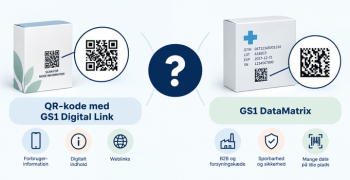
GTIN
Colloquially, many know GTIN as a barcode, but technically, GTIN is the number found beneath the barcode symbol itself, and can therefore also be used for other technologies such as 2D barcodes and RFID tags.
Colloquially, many know GTIN as a barcode, but technically, GTIN is the number found beneath the barcode symbol itself, and can therefore also be used for other technologies such as 2D barcodes and RFID tags.
Do you have a lot of data that you would like to transfer from GS1Trade Sync to our packaging system, GS1Trade Packaging?
This is a guide on doing just that - by using an Excel sheet.
It requires a simple report from GS1Trade Sync, which contains a limited data set that can be easily transferred to the Excel import-template in GS1Trade Packaging.
Log in to GS1Trade Sync.
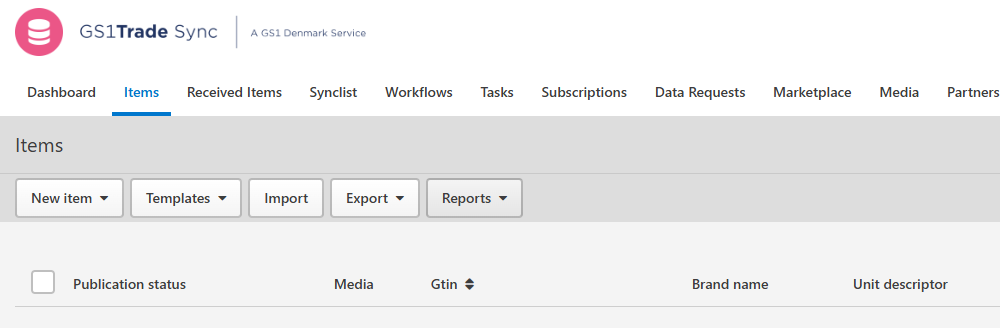
Find reports in the tab Product overview and click on the Reports button.
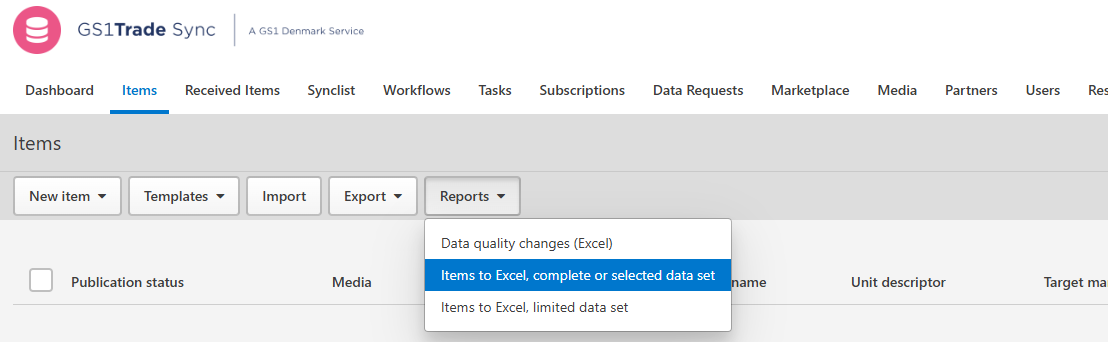
In the drop down list, select the Units to Excel, complete or selected data set.
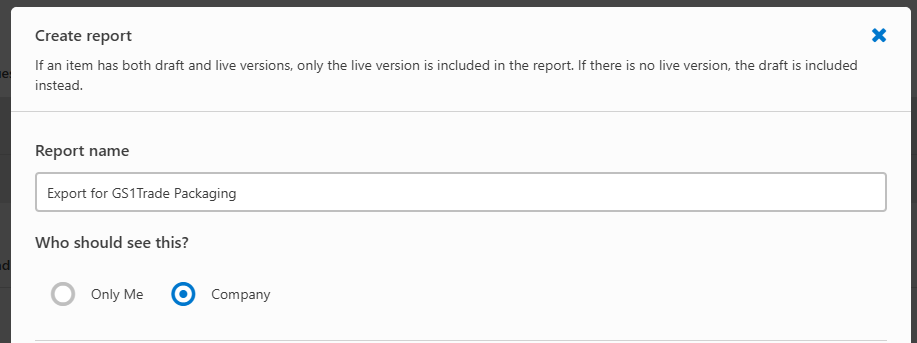
Now you can create a report of your data and select the specific data points you need in GS1Trade Packaging.
Give the report a meaningful name. This might be, among other things, what the report is intended to be used for.
Make it specific by only adding the information it needs to contain.
The following example is a report where the information will be used to create a product in GS1Trade Packaging and the Packaging type.
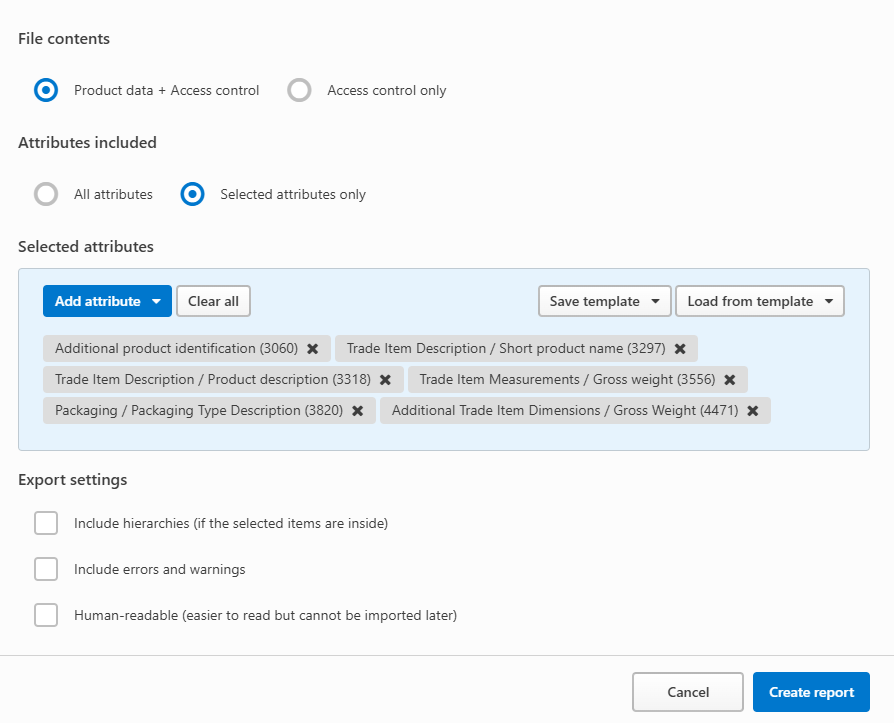
If there is any additional packaging data stored in GS1Trade Sync, these can also be added to the report.
In that case, click Add field and select the fields that need to be include.
Once the report is created, it can be downloaded as an Excel file in the menu tab Tasks.
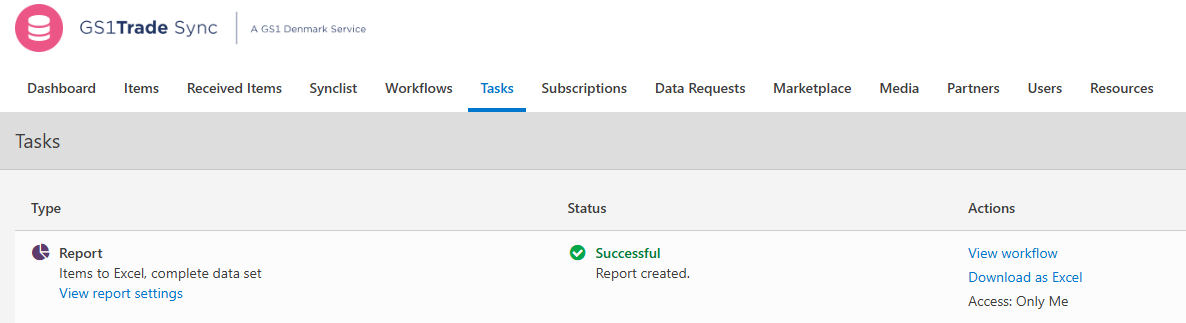
Now you can transfer the information from the report to the import template in GS1Trade Packaging and import your data to the system.
Here you will find a guide on how to import packaging data via an Excel template.
Do you still need help? Reach out to our support team. We are always ready to help.