|


GTIN
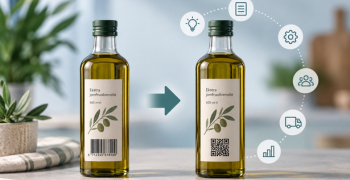
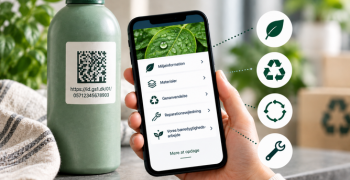
Colloquially, many know GTIN as a barcode, but technically, GTIN is the number found beneath the barcode symbol itself, and can therefore also be used for other technologies such as 2D barcodes and RFID tags.
Colloquially, many know GTIN as a barcode, but technically, GTIN is the number found beneath the barcode symbol itself, and can therefore also be used for other technologies such as 2D barcodes and RFID tags.
This guide applies to companies that only use GS1Trade Packaging, and companies that use both GS1Trade Packaging and GS1Trade Sync.
The process you need to follow consists of two key steps:
Se how to create and share packaging data. Timestamps are provided in the guide below, so you can always find the content most relevant to you.
When you log in to GS1Trade Packaging, you'll land on the dashboard page, where you get an overview of the products, packaging units, and components created in the system.
Note: in GS1Trade In Packaging, we manage products and packaging separately. This ensures flexibility and simplifies data maintenance. For instance, if the same packaging is used for multiple products, the packaging data only needs to be maintained in one central location.
First, we create a product – for example, the trade item launched on the market.
In this example, we are creating a jam product.
As you can see, there are no fields on the product page itself that relate to the packaging. The fields here exclusively concern the identification of the product itself.
Now we need to create the packaging that the item consists of. We must create all the individual packaging components that make up the entire product's packaging.
In our jam product example, the packaging consists of three components, each created separately:
We start by creating the lid for the jam product.
Be sure to give components recognizable names. Consider establishing a system before you begin, which will make it easier to search the system later, especially if many components and units have been created.
When creating a component, you need to specify:
Once these fields are specified, click Save in the upper right corner.
Next, we create the jar, The element type is specified as jar
Next, we create the jar, where the component type is specified as jar, the material type as glass, and the weight of the jar is entered.
Finally, we create the third component, namely the product's label.
Creating our label highlights another system feature - whether a packaging component is composed of:
In this example, the label is made of a composite material comprising paper with an LDPE plastic coating.
We specify that it is a composite material and describe the various composite material layers:
Packaging consists of a main component and potentially integrated and separate components.
The main component is typically the component that constitutes the majority of the packaging by weight or volume.
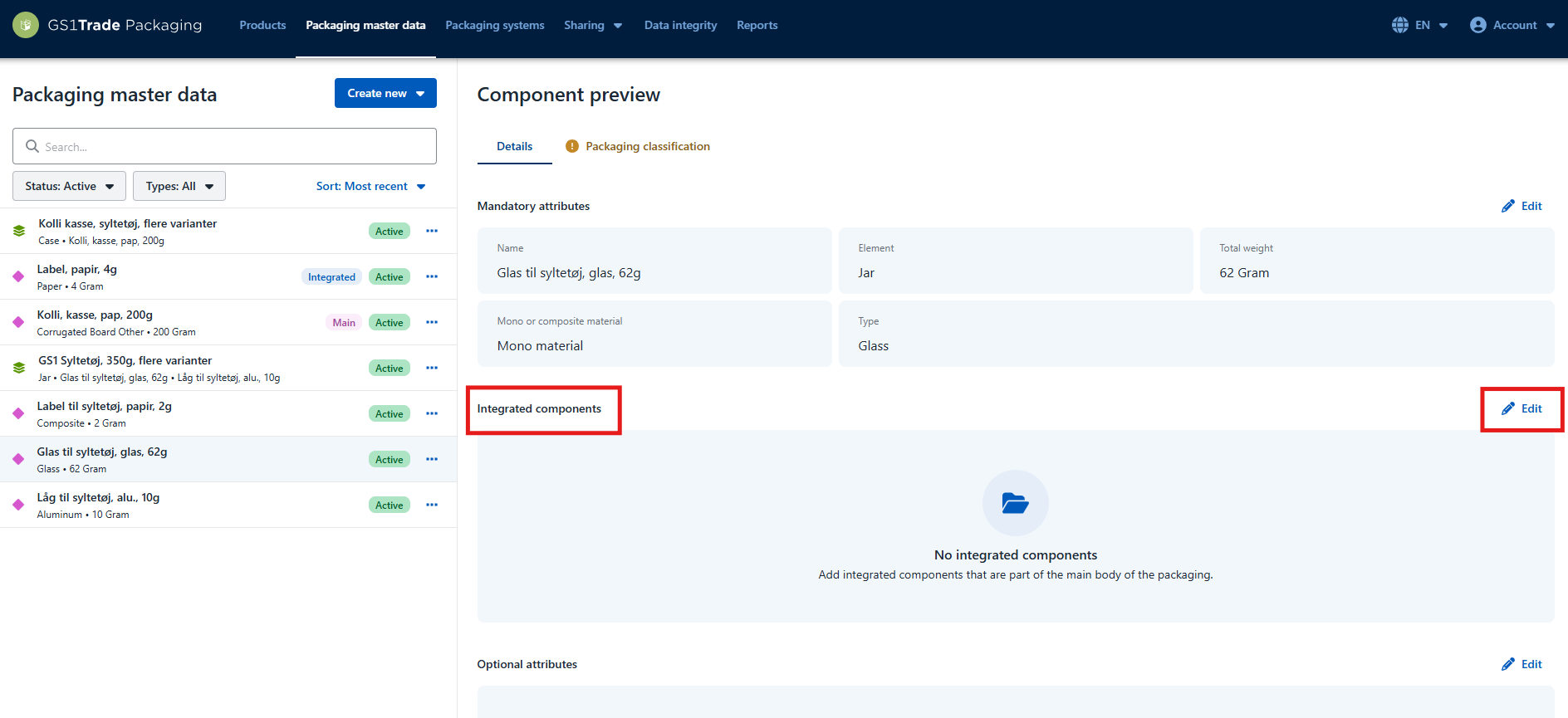
Once the individual components have been created, it is important to connect them correctly.
They must be connected before packaging units are assembled and before environmental grading is carried out. Packaging with integrated components must be environmentally graded as a whole.
In our example, the jam jar is the main component.
The label must be registered as an integrated component on the jam jar, as it cannot be separated from the jar when discarded.
The lid, however, should not be integrated, as it is a separate component because it can demonstrably be separated from the jar and disposed of separately. This will later be assigned its own environmental rating.
The jam jar and the label are now correctly integrated into the system and are ready to be environmentally rated.
In GS1Trade Packaging, you can environmentally grade your packaging.
It is also a requirement that this is done before you attempt to share data on products that must contain these components.
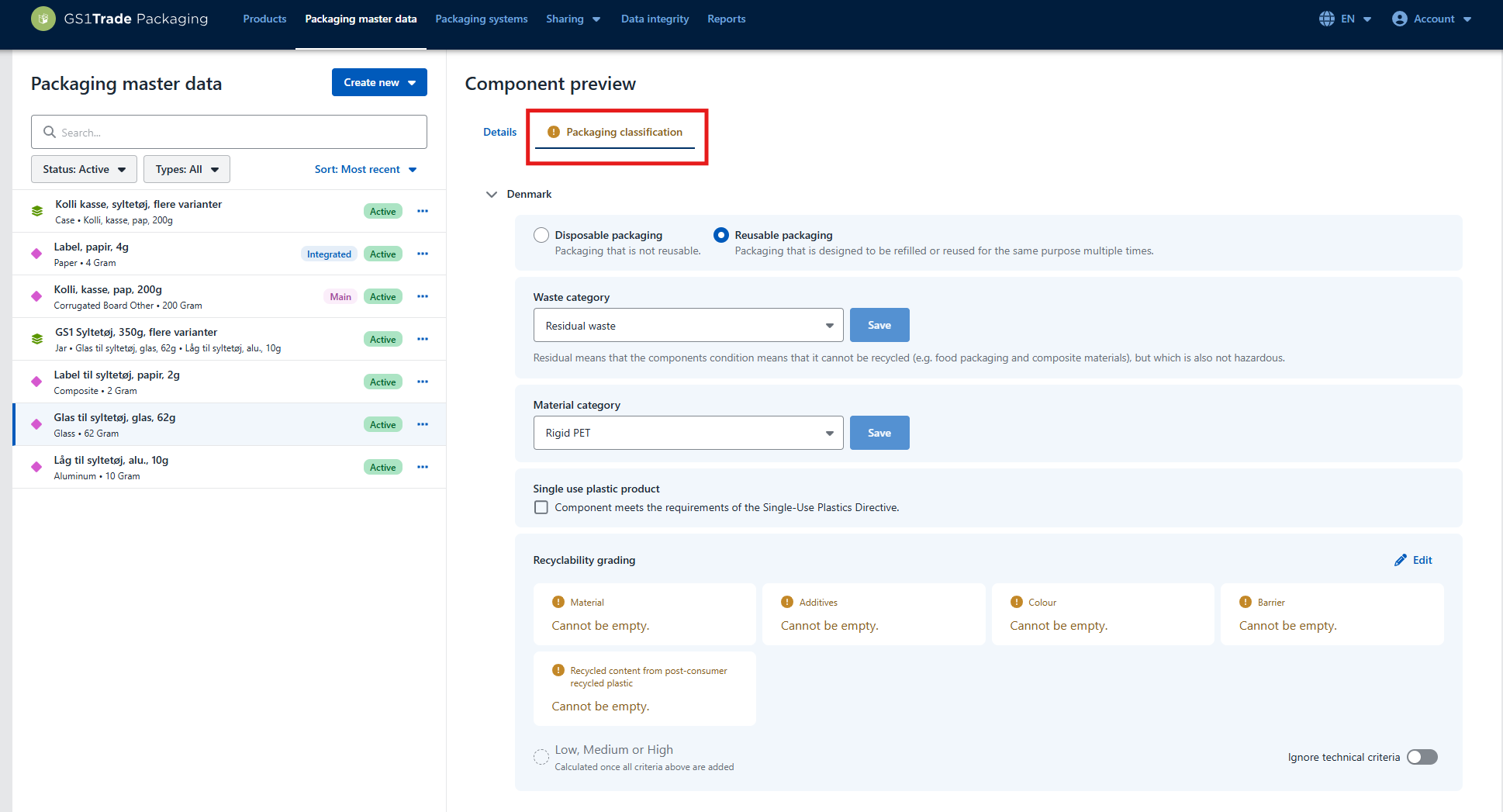
Environmental grading is performed on the individual components under the tab Packaging classification.
Integrated components do not need to be environmentally graded, as they are linked to the main component and are environmentally graded through it.
We start with the main component - the jam jar.
For environmental classification, the following must be specified:
The criteria are based on the Danish Environmental Protection Agency's design requirements.
Each criterion is assessed according to the levels:
Note. If you do not have the necessary information about the material, you must contact the packaging manufacturer.
Once all individual components have been created and environmentally rated, they must be assembled into a packaging unit.
Note. Please note that if data is to be shared with retail, the packaging unit and its components should only represent a single instance of the GTIN without content. For example, for a case unit, this means that only the packaging for one empty case should be included.
Once both the product and packaging are created in the system, they must be linked to the packaging unit that is unique to each GTIN.
By using the same packaging unit across multiple products, data only needs to be updated in one place if changes occur. This saves time and ensures more efficient data maintenance.
For example, this unit could be used for several jam varieties such as strawberry, raspberry, and orange.
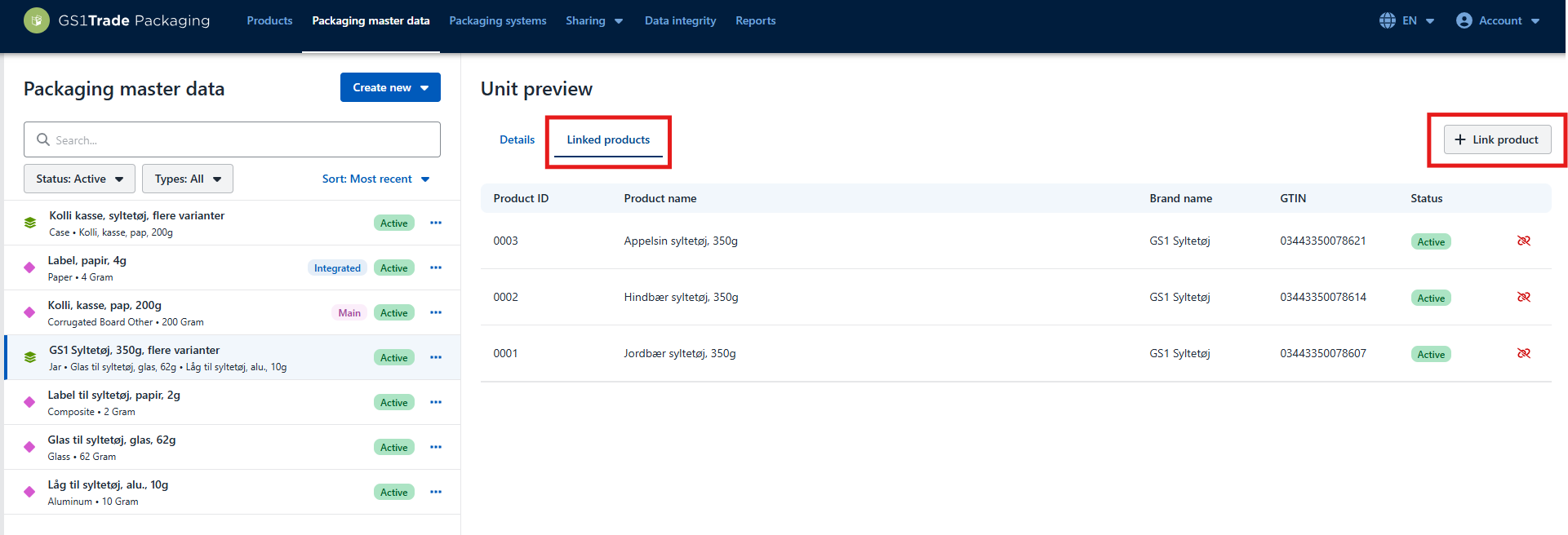
Once all packaging units have been created, we need to assemble them into a system if, for example, we want to show the connection between base units and case units.
In our example, we sell the jam product in cases, so we need to create a packaging system for the product hierarchy.
Packaging systems reflect the product hierarchy and the number of units included in the system, i.e., the quantities products are packed in when they leave the warehouse.
If you only work with base units and primary packaging, packaging systems may not be relevant for you.
On the right side, the created packaging units are now displayed, which can be used to build the system.
Packaging units can be dragged into the levels:
Enter the total number of each packaging unit in the system. Systems are always defined starting from the highest unit.
In this example, the system consists of: 1 carton containing 24 base units.
If a system has 1 pallet with 8 cartons, and each carton contains 10 base units, there will be a total of 80 base units on the pallet.
This should be entered as:
Primary: 80
Secondary: 8
Tertiary: 1
Once products and packaging data have been fully created in GS1Trade Packaging, we are ready to share data with retailers.
Before publishing product data, you should ensure that:
If the status is "Approval required", it means that the GTIN you are trying to share shares packaging units with another product. In this case, the system will require you to update data for all products that share this unit, to ensure that no misaligned data is sent to the data recipient. An approval must be actively performed, otherwise the publishing process will not continue.
Firstly, when data is published from GS1Trade Packaging:
If your company uses both GS1Trade Packaging and GS1Trade Sync - and your data recipient has not specifically requested access to data directly via the GS1Trade Packaging interface - you should not add recipients in GS1Trade Packaging.
Instead, you should:
When you publish the product, data is sent to GS1Trade Sync.
After this, the publication must be completed in GS1Trade Sync, where you specify data recipients and complete the final publication.
Note. If your data recipient wishes to receive data directly in GS1Trade Packaging, then you must specify the data recipient under "Sharing settings" on the product before publishing.
After publishing in GS1Trade Packaging, the rest of the process continues in GS1Trade Sync, where we must ensure that data has been shared with the desired retailer.
All products (GTINs) shared from GS1 will then be displayedTrade Packaging.
If the product is Live or Published data is shared with the specified data recipients, who also receive product data for the product in GS1Trade Sync.
If the product is in a Draft, you need to do the following to share it:
The packaging data has now been shared with the desired retailer.
Do you still need help? Reach out to our support team. We are always ready to help.