The Global Language of Business
Contact ushvidt omrids af cirkel med hvid pil i midten der peger mod venstre
Create Packaging systems in GS1Trade Packaging

A packaging system consists of all packaging that is normally used to bring a product to market.
A packaging system can have up to three levels: primary, secondary, and tertiary.

How many levels your packaging system should include depends on how you usually distribute your product.

  • If you always send the product in bulks on full pallets, the packaging system will consist of a consumer unit (primary), shipping box (secondary) and pallet (tertiary).
  • If you ship the product in bulks on mixed pallets, the highest standard level will be the shipping box, and the system will only include the consumer units (primary) and bulk packaging (secondary).

It is not a legal requirement to structure your data in packaging systems, but we recommend it as it gives you a better overview.

Before you start

To create a packaging system, you first need to

  1. Create the packaging units (and related components) that will be part of the packaging system.

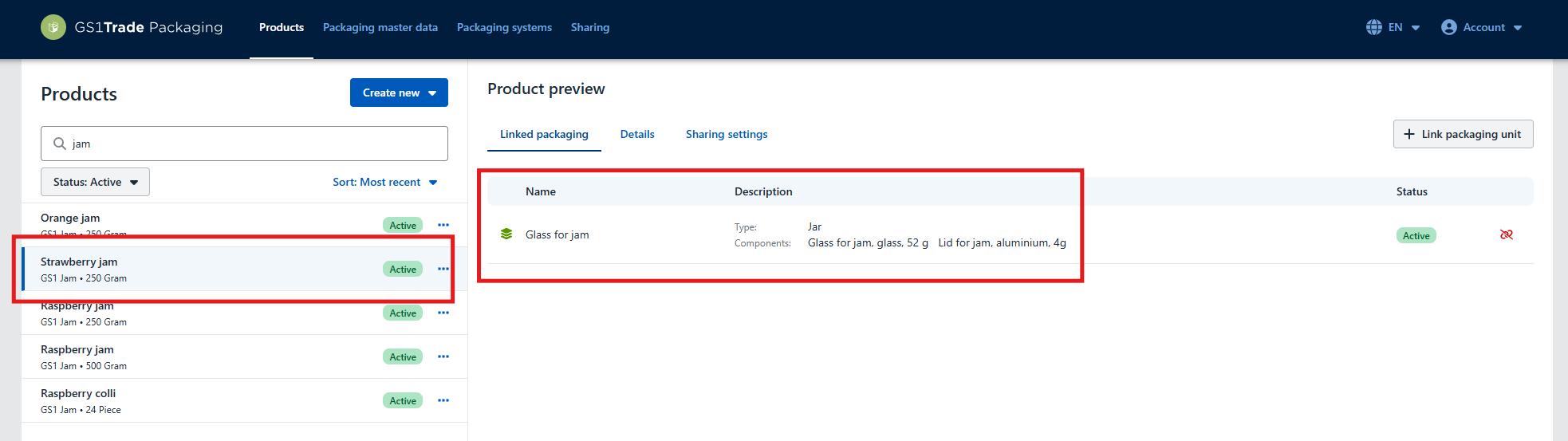
  1. Make sure to link one of the packaging units to the products that use the packaging system.

In principle, it doesn’t matter if you link the primary, secondary, or tertiary packaging unit to the product. However, we recommend linking the unit that corresponds to the product level, as this makes it easier when you need to specify marketed quantities.
For example, if you have created a single item (consumer unit), you should link it to the primary packaging. If you have created a bulk item, you should link it to the bulk packaging (often secondary).

Not sure how to create packaging units and link them to products? Watch the guide to creating and linking units here.


How to create a packaging system

Example 1: The product is always shipped on full pallets

In this example, we have a jam product that is always shipped on full pallets. The packaging system has three levels:

  • Primary packaging unit: Glass jar with label and lid.
  • Secondary packaging unit: A shipping box (made of cardboard).
  • Tertiary packaging unit: Pallet and wrap.

Besides knowing the packaging units, you must specify the quantity of each unit in the packaging system. It’s easier to start from the bottom (tertiary level).

We start out with the tertiary packaging unit:

  • We have 1 pallet and 1 wrap.
  • On the pallet there are 8 shipping boxes (cardboard boxes with tape).
  • In each box there are 10 jam jars. This means that in total we have 80 jam jars in the packaging system.

In the example, we have created the three packaging units (jar, box, and pallet), that are included in the packaging system. We have three jam products that use this packaging system (Strawberry, Raspberry, Orange). All three are linked to the primary packaging unit: the glass jar with label and lid.

  1. Go to the menu tab “Packaging systems” and click Create new.
  2. Name the packaging system and add an internal ID. This is optional.
  3. Click Save.
  4. You will now see your packaging units on the right and packaging levels on the left side of the screen.
  5. Drag each unit to the correct level and enter the total quantity that is included in the system. In this case it is 80 jam jars, 8 boxes, 1 pallet + 1 wrap.

The packaging system is now created. Click Back to see the packaging system on the list.


Example 2: The product is shipped in bulk

In this example, our jam product is always shipped in bulk. The bulk units are placed on mixed pallets (with other products). Therefore, you cannot create a standard packaging system for the entire pallet.

This packaging system consists of two levels:

  • Primary packaging unit: Glass jar with label and lid.
  • Secondary packaging unit: A bulk unit (made of cardboard).

In the demonstration video you are able to see that we have created two packaging units (jar and box), that are included in our packaging system. We have three jam products that use this packaging system (Strawberry, Raspberry, Orange), all three products are linked to the primary packaging unit: glass jar with label and lid.

We start out with the secondary packaging unit. We have 1 shipping box containing 10 jam jars.

  1. Go to the menu item “Packaging systems” and click Create new.
  2. Name the packaging system and add an internal ID (optional).
  3. Click Save.
  4. You will now see your packaging units on the right and packaging levels on the left.
  5. Drag each unit to the correct level. Enter the total quantity of units included in the system.

The packaging system is now created. Click Back to see it listed.

Example 3: The product is send individually in mixed transport boxes or mixed pallets

In this case, the single items are brought on the marked individually – fx when a consumer is ordering the product via a webshop.
Here, there is no standard packaging system, and therefore it doesn’t make sense to create one.

In these cases, you should simply create and link the consumer packaging (primary unit) directly to the products.

Do you want to download the guide?

arrow-right-circle
Hent den her

Do you still need help? Reach out to our support team. We are always ready to help.

Har du spørgsmål?
Contact us here

Create Packaging systems in GS1Trade Packaging

Newest guides

GS1 Trade Packaging ikon - grøn cirkel med  illustration af en åben papkasse
Trade Sync ikon - en lyserød cirkel med en illustration af tre cirkler ovenpå hinanden i en cylinder
Exact ikon - en solgul cirkel med en illustration af et forstørrelsesglas
Image ikon - en lyselilla cirkel med en illustration af et kamera i midten
Transact ikon - en lyseblå cirkel med en illustration af et stykke papir med tekst og en stjerne på
GLN ikon - en orange cirkel med en illustration af et lokationssymbol
Logo til Activate service grøn cirkel med grafik af papir med tekst og check-mærker
GTIN ikon - en grøn cirkel med en illustration af fem lodrette streger som en stregkode
|
Videokamera ikon i en mørkeblå cirkel
Ikon for læsetid - en mørkeblå cirkel med fire horisontale streger der indikerer tekst
 min
Data Sharing to Retail in GS1Trade Packaging A-Z
Learn how to create packaging data in GS1Trade Packaging and share it with retailers. We'll cover the entire process, from creating packaging components to publishing data.
This is some text inside of a div block.
GS1 Trade Packaging ikon - grøn cirkel med  illustration af en åben papkasse
Trade Sync ikon - en lyserød cirkel med en illustration af tre cirkler ovenpå hinanden i en cylinder
Exact ikon - en solgul cirkel med en illustration af et forstørrelsesglas
Image ikon - en lyselilla cirkel med en illustration af et kamera i midten
Transact ikon - en lyseblå cirkel med en illustration af et stykke papir med tekst og en stjerne på
GLN ikon - en orange cirkel med en illustration af et lokationssymbol
Logo til Activate service grøn cirkel med grafik af papir med tekst og check-mærker
GTIN ikon - en grøn cirkel med en illustration af fem lodrette streger som en stregkode
|
Videokamera ikon i en mørkeblå cirkel
Ikon for læsetid - en mørkeblå cirkel med fire horisontale streger der indikerer tekst
 min
Create Packaging systems in GS1Trade Packaging
Learn how to create packaging systems and create a better structure for your data in GS1Trade Packaging.
This is some text inside of a div block.
GS1 Trade Packaging ikon - grøn cirkel med  illustration af en åben papkasse
Trade Sync ikon - en lyserød cirkel med en illustration af tre cirkler ovenpå hinanden i en cylinder
Exact ikon - en solgul cirkel med en illustration af et forstørrelsesglas
Image ikon - en lyselilla cirkel med en illustration af et kamera i midten
Transact ikon - en lyseblå cirkel med en illustration af et stykke papir med tekst og en stjerne på
GLN ikon - en orange cirkel med en illustration af et lokationssymbol
Logo til Activate service grøn cirkel med grafik af papir med tekst og check-mærker
GTIN ikon - en grøn cirkel med en illustration af fem lodrette streger som en stregkode
|
Videokamera ikon i en mørkeblå cirkel
Ikon for læsetid - en mørkeblå cirkel med fire horisontale streger der indikerer tekst
 min
Placement of the QR-code with GS1 Digital Link
Correct positioning of the QR code is critical to ensuring efficient scanning at both the point of sale and by consumers
This is some text inside of a div block.