The Global Language of Business
Contact ushvidt omrids af cirkel med hvid pil i midten der peger mod venstre
How to share data from GS1Trade Packaging - when you have GS1Trade Sync

This guide is for you who both subscribe to GS1Trade Packaging and GS1Trade Sync - and use both to share packaging data with your customers.

If you exclusively use GS1Ttrade Packaging to share packaging data, you must instead follow the guide to data sharing in Trade Packaging.

When publishing from GS1Trade Packaging, products that already exist in GS1Trade Sync will automatically be shared with the relevant data recipients.

If a product does not yet exist in GS1Trade Sync, it will be created as a draft. And you have to then manually assign data recipients and publish the products in GS1Trade Sync.

Before you get started

  • Agree with your costumers, where they want to receive data - only in GS1Trade Sync or both GS1Trade Sync and GS1Trade Packaging - this has an impact on the workflow.
  • Your products must be ready to be shared with the customers, i.e. all packaging associated with the product must be created.
    • Packaging components must be created, integrated (if applicable) and environmentally graded.
    • Packaging units must be created and linked to the products.
    • (If applicable to you) Packaging systems must be created.
  • GTIN must be added to the product.

Share data in GS1Trade Packaging

Since your company already subscribes to GS1Trade Sync, data will always be shared to GS1Trade Sync. In this case, you manage data recipients in GS1Trade Sync and not in GS1Trade Packaging.

Note. If you only need to share data to GS1Trade Sync, skip the following section.

If You Also Want to Share Data to GS1Trade Packaging

If you have agreed with the data recipient(s) that they also want to receive data in GS1Trade Packaging, you must specify the recipient within GS1Trade Packaging:

  1. Go to the "Sharing settings" tab under the product
  2. Click Add recipients. Products can be shared with one or multiple recipients.
  3. Select the recipient(s) with whom you want to share data - click Add selected recipient(s).

Publish data in GS1trade Packaging

  1. Go to “Sharing” and “Publish Data” in the main menu.
  2. Select one or more products for a publication. The list presents all shareable products and can be sorted by who is configured as the recipient on the products.
  3. Click Publish. Now the publication is set to begin.
  4. In the “Publications” tab, you can see the status per publication, as well as how many products were included in the publication.

If the status shows Publication completed, data has been published.

Here you can see a description of the most common sources of errors associated with data sharing in GS1Trade Packaging.

Set up the correct view in GS1Trade Sync

First, set up the view in GS1Trade Sync to get an overview of the data that has been transferred to the system from GS1Trade Packaging.

  1. Log in to GS1Trade Sync.
  2. Go to the “Product Overview” tab.
  3. Select Advanced Search - click Add/Remove filters then and add the filter Sector
  4. Under Sector search for EPR - all products (GTINs) shared from GS1Trade Packaging, will be displayed.

Publish products to companies in GS1Trade Sync

Products that already exist in GS1Trade Sync, will be automatically shared with relevant data recipients.

A product that is not yet exist in GS1Trade Sync will be created as a draft when published from GS1Trade Packaging, and you must assign data recipients and publish it manually in GS1Trade Sync.

In the example below, we have created and published a jam product that is now also available in GS1Trade Sync.

Publication status reads as Draft and Public.
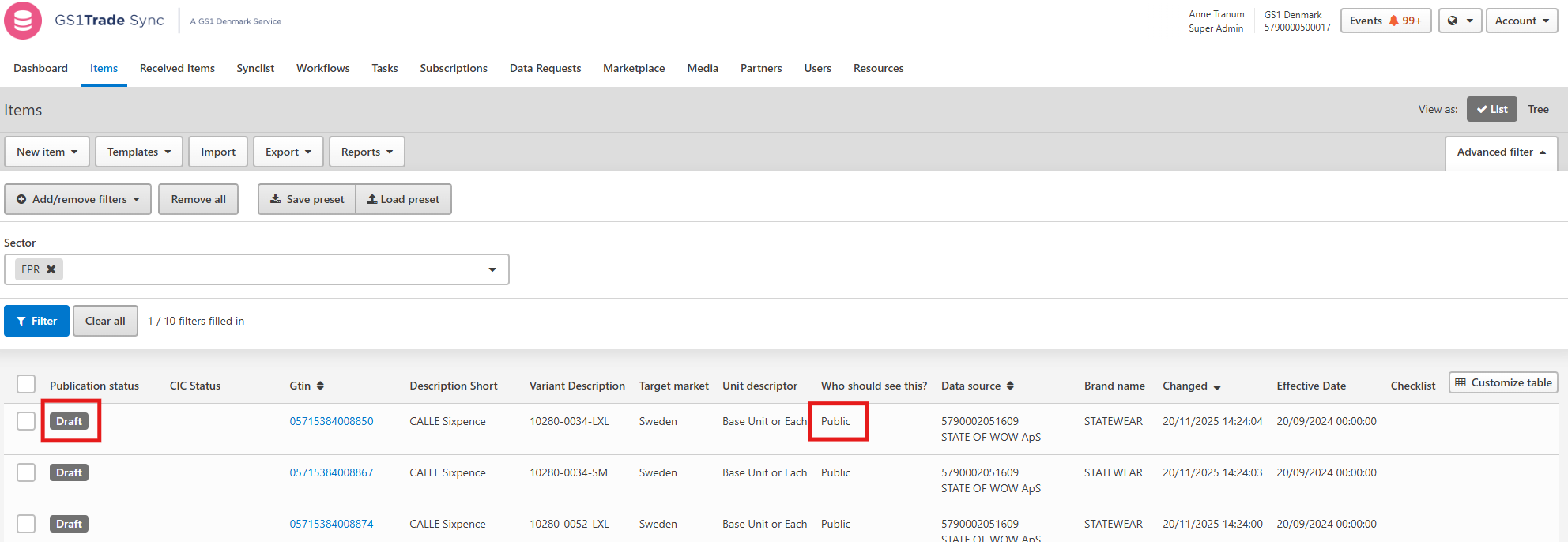
Next, you need to target the data recipient(s) from within GS1Trade Sync:
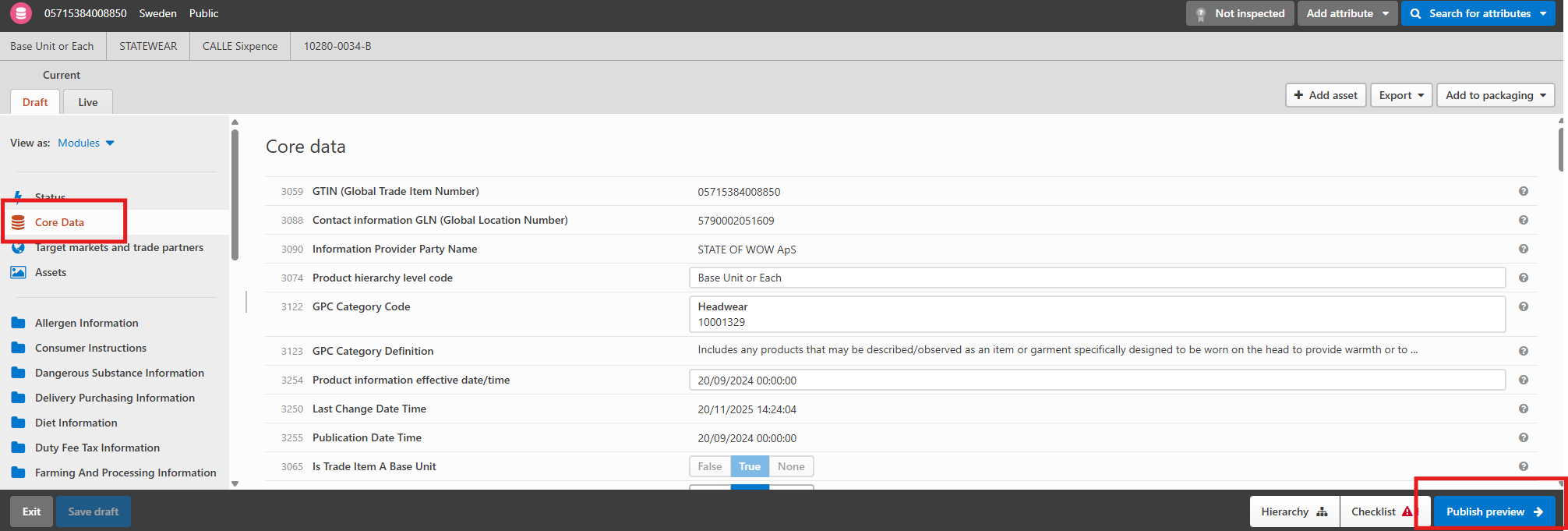
  1. Click on the GTIN of the given product to view the details
  2. Go to the “Core data” tab on the left side of the screen and click on Publish Preview in the lower right corner.
  3. Under Who should see this? adjust the data sharing settings by selecting Restricted and then Data Recipients".
  4. From the Companies dropdown list, select your customer's GLN.
  5. Click Save and then Publish.

Do you want to download the guide?

arrow-right-circle
Hent den her

Do you still need help? Reach out to our support team. We are always ready to help.

Switch to English / Dansk
Har du spørgsmål?
Contact us here

How to share data from GS1Trade Packaging - when you have GS1Trade Sync

Newest guides

GS1 Trade Packaging ikon - grøn cirkel med  illustration af en åben papkasse
Trade Sync ikon - en lyserød cirkel med en illustration af tre cirkler ovenpå hinanden i en cylinder
Exact ikon - en solgul cirkel med en illustration af et forstørrelsesglas
Image ikon - en lyselilla cirkel med en illustration af et kamera i midten
Transact ikon - en lyseblå cirkel med en illustration af et stykke papir med tekst og en stjerne på
GLN ikon - en orange cirkel med en illustration af et lokationssymbol
Logo til Activate service grøn cirkel med grafik af papir med tekst og check-mærker
GTIN ikon - en grøn cirkel med en illustration af fem lodrette streger som en stregkode
|
Videokamera ikon i en mørkeblå cirkel
Ikon for læsetid - en mørkeblå cirkel med fire horisontale streger der indikerer tekst
 min
Guide to creating meal replacements in GS1Trade Sync
Learn more about how meal replacements are correctly registered in GS1 according to current nutrition labeling and reference intake requirements.
This is some text inside of a div block.
GS1 Trade Packaging ikon - grøn cirkel med  illustration af en åben papkasse
Trade Sync ikon - en lyserød cirkel med en illustration af tre cirkler ovenpå hinanden i en cylinder
Exact ikon - en solgul cirkel med en illustration af et forstørrelsesglas
Image ikon - en lyselilla cirkel med en illustration af et kamera i midten
Transact ikon - en lyseblå cirkel med en illustration af et stykke papir med tekst og en stjerne på
GLN ikon - en orange cirkel med en illustration af et lokationssymbol
Logo til Activate service grøn cirkel med grafik af papir med tekst og check-mærker
GTIN ikon - en grøn cirkel med en illustration af fem lodrette streger som en stregkode
|
Videokamera ikon i en mørkeblå cirkel
Ikon for læsetid - en mørkeblå cirkel med fire horisontale streger der indikerer tekst
 min
Guide to creating cost substitutes in GS1Trade Sync
Learn more about how to properly register dietary supplements in GS1 according to current requirements for nutrition, dosage and use.
This is some text inside of a div block.
GS1 Trade Packaging ikon - grøn cirkel med  illustration af en åben papkasse
Trade Sync ikon - en lyserød cirkel med en illustration af tre cirkler ovenpå hinanden i en cylinder
Exact ikon - en solgul cirkel med en illustration af et forstørrelsesglas
Image ikon - en lyselilla cirkel med en illustration af et kamera i midten
Transact ikon - en lyseblå cirkel med en illustration af et stykke papir med tekst og en stjerne på
GLN ikon - en orange cirkel med en illustration af et lokationssymbol
Logo til Activate service grøn cirkel med grafik af papir med tekst og check-mærker
GTIN ikon - en grøn cirkel med en illustration af fem lodrette streger som en stregkode
|
Videokamera ikon i en mørkeblå cirkel
Ikon for læsetid - en mørkeblå cirkel med fire horisontale streger der indikerer tekst
 min
Guide to creating vitamins, minerals and supplements in GS1Trade Sync
Understand how vitamins, minerals and supplements are properly registered in GS1 according to applicable regulatory requirements.
This is some text inside of a div block.