The Global Language of Business
Contact ushvidt omrids af cirkel med hvid pil i midten der peger mod venstre
GS1Trade Sync 'template function' user guide

The following tutorial gives you concrete examples of how to create templates in GS1Trade Sync. The use of templates in Trade Sync is smart to define specific characteristics of a product line beforehand, which is why it helps to save you time.

Watch a video tutorial for the template feature in GS1Trade Sync.

You can also read the instructions.

What can you use templates for in GS1Trade Sync?

You can use templates to pre-define specific characteristics for a product line that you need to create in GS1trade Sync. For example, if you have a carton of milk in 5 different flavors, where the brand name, dimensions and weight are repeated on all 5 products. Here you can advantageously use a template to create the entire series. It will ultimately save you quite a bit of time.

GS1 Trade sync_skabelon_mælk

How do you create a template?

You can create a template in two different ways: New template or Template from an existing product

  1. New template: Click 'Templates' ---- 'New template'
GS1 Trade sync_skabelon_produktoversigt

Give your template an appropriate name.

GS1 Trade sync_skabelon_produktoversigt_grundlæggende data

Then select the target market, an appropriate type of device and GPC category code.

GS1 Trade sync_rediger skabelon_grundlæggende data_basis

The other modules will now be activated and you can enter all the information common to this product series. To do this, click on the headings out to the left, e.g. Dimensions and Hazardous Substances.

GS1 Trade sync_rediger skabelon_grundlæggende data_basis_dimensioner

  1. Template from an existing product: Select the product you want to create a template from and select in the square on the left. Press 'Templates' and then choose 'New template from featured'.
GS1 Trade sync_rediger skabelon_grundlæggende data_ny skabelon fra udvalgte
From an existing product:

The procedure is the same as when creating a new template. Once you have pressed 'New template from selected', you will give it an appropriate name. Device and GPC code are known from the existing product from which the template is created. You can create templates from both drafts and live/published products.

Creating new product from template:

To create a product from a template, click 'Templates' and 'New product from template' in the product overview.

GS1 Trade sync_rediger skabelon_grundlæggende data_nyt produkt skabelon

Find your template from the list and select it.

GS1 Trade sync_rediger skabelon_grundlæggende data_nyt produkt skabelon_mælk

Press 'Next' down in the right corner.

GS1 Trade sync_rediger skabelon_grundlæggende data_mængdevariabelt

Next, you'll go through the first, basic steps of the creation process, similar to if you were to create a new product without using a template.

GS1 Trade sync_rediger skabelon_grundlæggende data_nyt produkt skabelon_basis

You can also start a creation directly from the template

How to fix in a template

If you need to change something in your template, click your name in the upper right corner and select:

'Product templates'

GS1 Trade sync_skabelon_min profil

Find your template and click on it

GS1 Trade sync_skabelon_din skabelon

You can now edit in the selected template
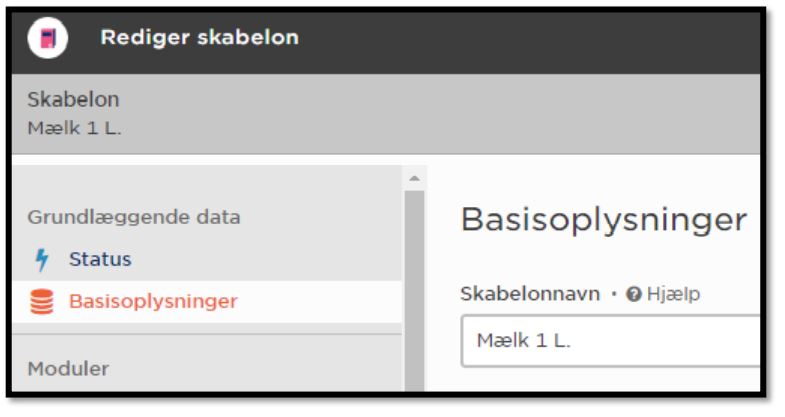
GS1 Trade sync_rediger skabelon_grundlæggende data_status

Good advice when using the template function:

  • Do not fill in anything in the template in the fields that you know are not consistent for your products (e.g. your internal part number/supplier's part number and the name of the item). Leave them blank, because then you will get an error message when validating when creating the right product.
  • When creating a template from an existing product, consider whether your product should be public or private.
  • If you know that for all your products you need to specify an ingredient list, you can use a language code for it and leave the box for the ingredient list itself empty. Then you will also get an error when validating when creating the right product.

GS1 Trade sync_rediger skabelon_grundlæggende data_ingrediensliste_angivelse

  • You can use the same approach, for example, for nutritional values, where you fill in all fields except the content.
GS1 Trade sync_rediger skabelon_grundlæggende data_ingrediensliste_angivelse_ernæringsoverskrift

Do you want to download the guide?

arrow-right-circle
Hent den her

Do you still need help? Reach out to our support team. We are always ready to help.

Switch to English / Dansk
Har du spørgsmål?
Contact us here

GS1Trade Sync 'template function' user guide

Newest guides

GS1 Trade Packaging ikon - grøn cirkel med  illustration af en åben papkasse
Trade Sync ikon - en lyserød cirkel med en illustration af tre cirkler ovenpå hinanden i en cylinder
Exact ikon - en solgul cirkel med en illustration af et forstørrelsesglas
Image ikon - en lyselilla cirkel med en illustration af et kamera i midten
Transact ikon - en lyseblå cirkel med en illustration af et stykke papir med tekst og en stjerne på
GLN ikon - en orange cirkel med en illustration af et lokationssymbol
Logo til Activate service grøn cirkel med grafik af papir med tekst og check-mærker
GTIN ikon - en grøn cirkel med en illustration af fem lodrette streger som en stregkode
|
Videokamera ikon i en mørkeblå cirkel
Ikon for læsetid - en mørkeblå cirkel med fire horisontale streger der indikerer tekst
 min
Guide to creating meal replacements in GS1Trade Sync
Learn more about how meal replacements are correctly registered in GS1 according to current nutrition labeling and reference intake requirements.
This is some text inside of a div block.
GS1 Trade Packaging ikon - grøn cirkel med  illustration af en åben papkasse
Trade Sync ikon - en lyserød cirkel med en illustration af tre cirkler ovenpå hinanden i en cylinder
Exact ikon - en solgul cirkel med en illustration af et forstørrelsesglas
Image ikon - en lyselilla cirkel med en illustration af et kamera i midten
Transact ikon - en lyseblå cirkel med en illustration af et stykke papir med tekst og en stjerne på
GLN ikon - en orange cirkel med en illustration af et lokationssymbol
Logo til Activate service grøn cirkel med grafik af papir med tekst og check-mærker
GTIN ikon - en grøn cirkel med en illustration af fem lodrette streger som en stregkode
|
Videokamera ikon i en mørkeblå cirkel
Ikon for læsetid - en mørkeblå cirkel med fire horisontale streger der indikerer tekst
 min
Guide to creating cost substitutes in GS1Trade Sync
Learn more about how to properly register dietary supplements in GS1 according to current requirements for nutrition, dosage and use.
This is some text inside of a div block.
GS1 Trade Packaging ikon - grøn cirkel med  illustration af en åben papkasse
Trade Sync ikon - en lyserød cirkel med en illustration af tre cirkler ovenpå hinanden i en cylinder
Exact ikon - en solgul cirkel med en illustration af et forstørrelsesglas
Image ikon - en lyselilla cirkel med en illustration af et kamera i midten
Transact ikon - en lyseblå cirkel med en illustration af et stykke papir med tekst og en stjerne på
GLN ikon - en orange cirkel med en illustration af et lokationssymbol
Logo til Activate service grøn cirkel med grafik af papir med tekst og check-mærker
GTIN ikon - en grøn cirkel med en illustration af fem lodrette streger som en stregkode
|
Videokamera ikon i en mørkeblå cirkel
Ikon for læsetid - en mørkeblå cirkel med fire horisontale streger der indikerer tekst
 min
Guide to creating vitamins, minerals and supplements in GS1Trade Sync
Understand how vitamins, minerals and supplements are properly registered in GS1 according to applicable regulatory requirements.
This is some text inside of a div block.