|


GTIN
Colloquially, many know GTIN as a barcode, but technically, GTIN is the number found beneath the barcode symbol itself, and can therefore also be used for other technologies such as 2D barcodes and RFID tags.
Colloquially, many know GTIN as a barcode, but technically, GTIN is the number found beneath the barcode symbol itself, and can therefore also be used for other technologies such as 2D barcodes and RFID tags.
You create reports based on your master data, which it is why it is important that all master data is completed before you start creating your first report.
Before creating a report? make sure you have

To select products for the report, you have two options:
To add more products to the report - click Add line.
For each product, you must ensure that:
If you see any warning icons (red triangle) to the left of a product in the overview, hover over the icon to get a description of the issue.
It might mean that one or more components in the selected packaging unit lack packaging classification. Return to Packaging Master Data and finalize the incomplete components.
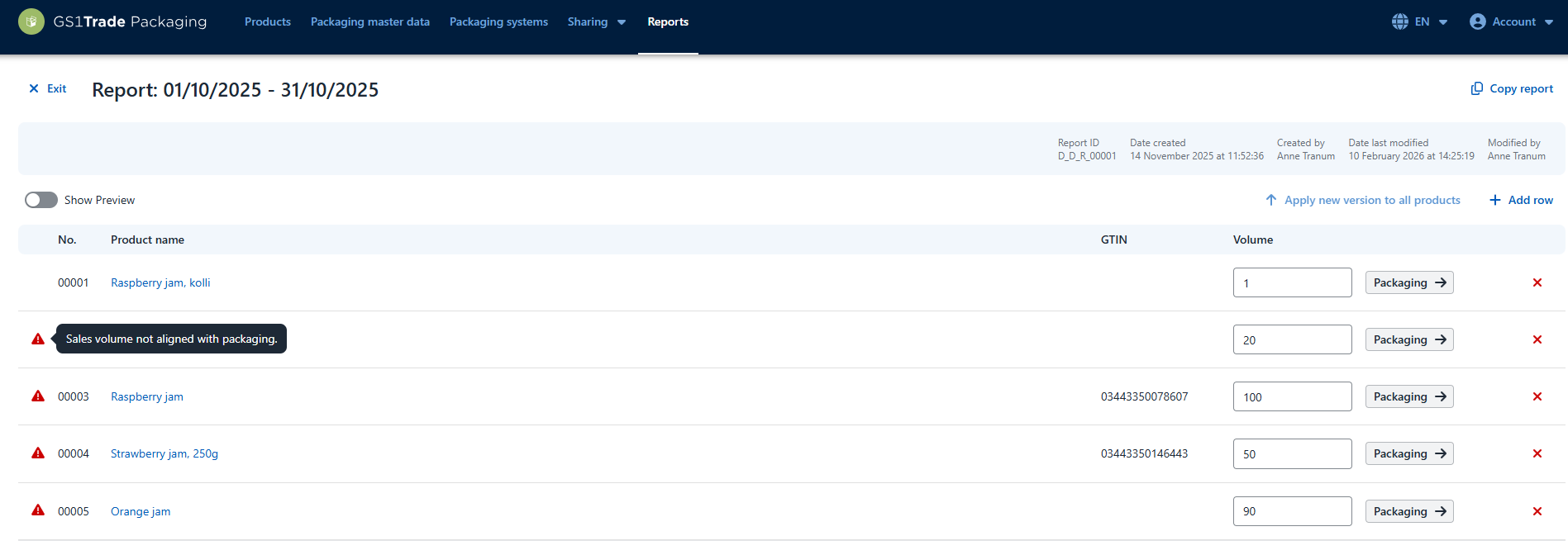
The system makes you aware of products that require the creation of new product versions.
If you see an upward arrow (↑) to the right of one or more product lines, it is because changes have occurred since the last saved product version or because the latest version has not been selected in the “Packaging” settings.
This product version will appear with the name “Autocreated” unless you have changed the name of the product version under “Sharing settings” on individual products.

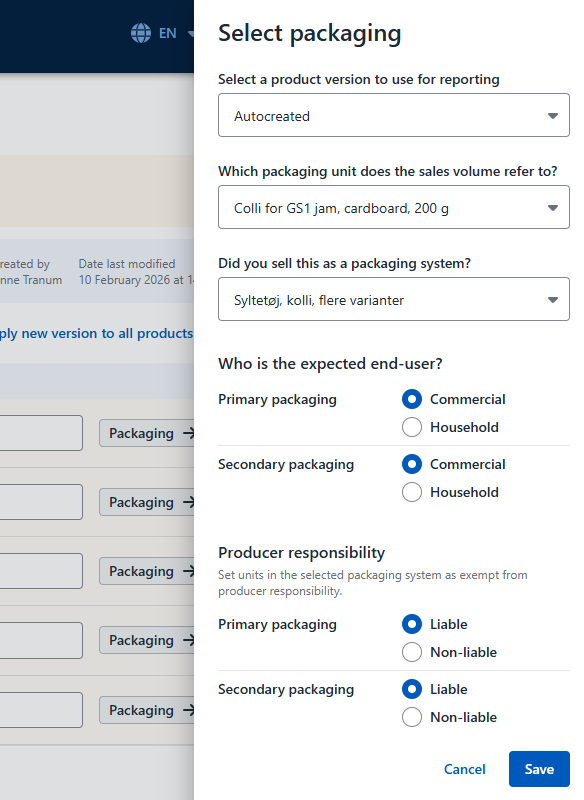
Once you have selected the packaging for your products, you are ready to enter your sales volumes for the products for that period.
It is currently only possible to enter sales volumes manually - we are working to ensure that they can be uploaded to the system.
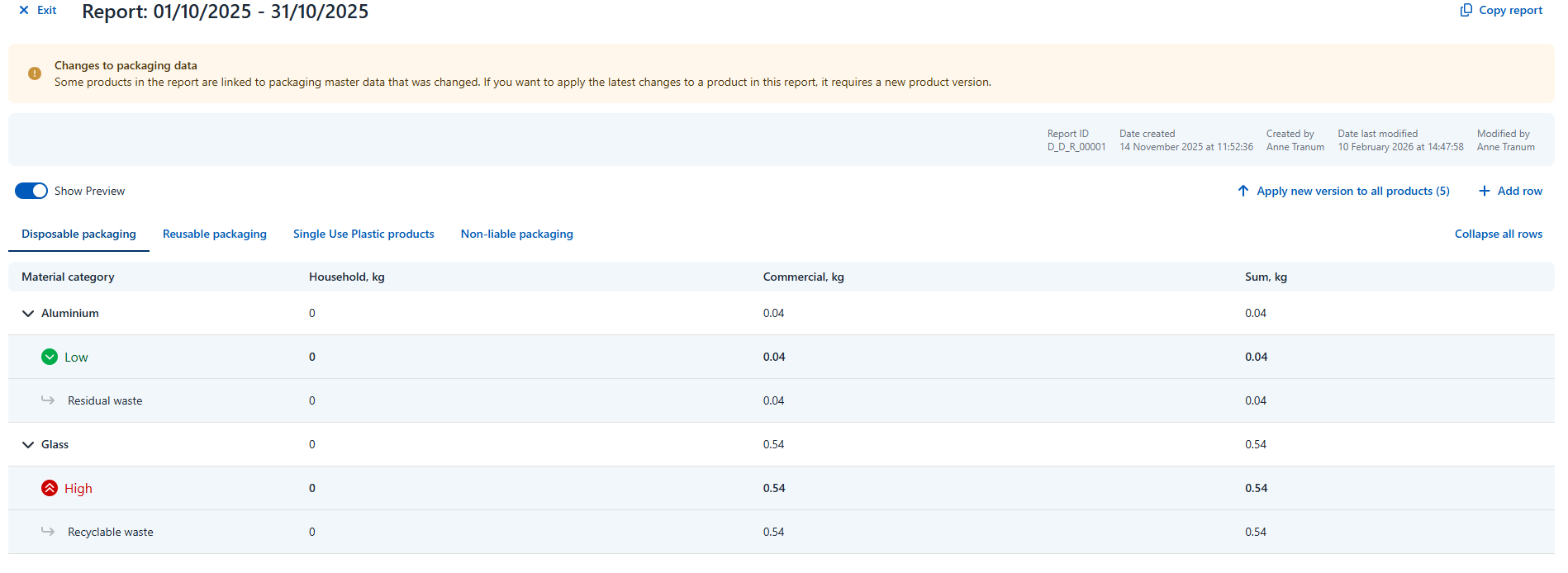
You can see your calculated packaging quantities by activating Show preview in the upper left corner of the report.
The first page of the report provides an overview of total packaging quantities divided by:
The other tabs show packaging quantities for:
Previous reports cannot be edited. If an incorrect sales volume was entered, adjust it in a new report using negative quantities.
Reports can't be deleted or marked as inactive. You can use the Note field for internal communication in these cases.
A product version is a snapshot of all directly and indirectly linked packaging master data at a specific point in time.
The function caters to two important business needs:
There are different packaging variants of the same product
If you have a product under the same product ID, where there are slight variations in the packaging in your inventory, then you can create Version 1 for Variation 1 and Version 2 for Variant 2.
Example: Version 1 has only a label on the front. Version 2 has labels on both front and back. This enables you to report both variants as marketed quantities for the same period.
For the calculation of marketed quantities
When you are calculating marketed quantities based on products sold, these are based on a product's directly and indirectly linked packaging master data.
The same data can be updated at the same time by both you and your colleagues. Therefore a product version provides a “fixed” basis for the calculation.
When updating packaging master data that should be included in report calculations, you must create a new product version to capture the updated data.
Therefore, as part of the reporting, you must define which product version the calculation will use.
Example: If a component linked to Product Version A changes weight from 10 g to 10.5 g, you must create Product Version B to include that 0.5 g change in the marketed quantity for that product.
Do you still need help? Reach out to our support team. We are always ready to help.