|


GTIN
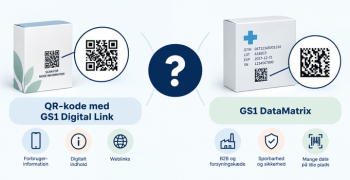
Colloquially, many know GTIN as a barcode, but technically, GTIN is the number found beneath the barcode symbol itself, and can therefore also be used for other technologies such as 2D barcodes and RFID tags.
Colloquially, many know GTIN as a barcode, but technically, GTIN is the number found beneath the barcode symbol itself, and can therefore also be used for other technologies such as 2D barcodes and RFID tags.
The GS1Trade Transact portal allows you to process incoming orders and form invoices based on them.
When an order is received in the portal, a notification is sent to a self-selected contact, after which you have the opportunity to accept or reject the order.
Once an order is accepted, it can be turned into an invoice sheet. Invoice slips can be edited as needed before you create the final invoice, which is sent out to the customer.
If an invoice is to be credited, the credit note is formed on the basis of that invoice. This creates a credit note sheet, which can be edited as needed before creating the final credit note, which is sent out to the customer.
Upon creation, you will receive an email containing both username and password.
The first time you log in, you will be prompted to enter a new password, which you will need to use in the future.
Your user profile will already be configured and ready to use, so do not do any further setup in the portal.
You can change the language of the portal by hovering your mouse over your username in the main menu and selecting “Change language/region”.
After that, select your preferred language from the list and finally press the save icon in the upper right corner.
Data is stored for 45 days on GS1Trades Transact portal. After this period, you will only be able to see the general information on older shipments, while specific details are no longer available.
Please use the Back button in GS1Trade Transact, for example, when you want to exit an invoice or go back to a previous page.
The portal “locks” certain pages so that no more users can interact with the same document at the same time. For example, when you process an invoice sheet, it is locked to your user. It is therefore important to complete the actions correctly so that the page in question is not unnecessarily locked for others.
To see the list of all your orders, hover over “Web-EDI” and select “Orders” from the menu. It displays all your orders and gives you an overview of the order's general information.
In the order overview you can also see the “Invoice status” of the order. The following shows the different statuses available.
Invoice status:
Before starting the order processing, you have the opportunity to view the contents of the order by clicking “View”. General information is presented here, such as customer details, delivery address and dates. You can also view all ordered product lines and quantities.
You can start the order processing either from inside the displayed order or from outside the order list. Click on “More” (from the order overview) or on “Actions” (from the displayed order).
You will now be presented with the options below.
Create an invoice sheet based on the order.
Information from the order is transferred to an invoice sheet, from which you can edit, among other things, the product lines.
If you choose to cancel billing, further billing on this order will not be possible.
Please note that this action cannot be undone.
You have the option to add internal notes on each order. This can facilitate your communication across users.
Print/Print the order in PDF format
If you need to print the order on physical paper, you can select “Print”. A PDF is created with the contents of the order, which can be printed.
Changes to the order (to be made at the time of invoicing)
In the event that changes have been made to the order, it is possible to correct the product lines on the invoice sheet. Here, both the quantity, price, etc. of the individual product line can be edited as needed.
The same applies if it is necessary to part deliver the order and thus also to invoice part. Here, the product lines can be removed on the invoice sheet, and the billing status of the order is automatically changed to “Partially invoiced”.
Please note that the order itself cannot be edited. If this is a necessity, we recommend that the order is instead rejected and the customer sends a new corrected order.
Note: It is possible to change a “Rejected” order to “Accepted”, but not vice versa.
Once you accept an order, it will be possible to turn the order into an invoice sheet. This is done by clicking “More” from the order overview and selecting “Create invoice”. You will now be presented with your invoice sheet, which contains all the information from the order.
All saved invoice slips and sent invoices can be found under the menu “Web-EDI” -> “Invoices”.
The invoice sheet is divided into 3 tabs, which form the starting point for the flow of invoice processing.
The Document Header tab displays general information from the order, such as customer details, billing address, and dates.
Under “Document number”, enter your own invoice number.
Under “Document date”, select the invoice date. This is automatically set to date.
The “Lines” tab displays all product lines that have been transferred directly from the order. On the invoice sheet, you now have the option to correct, add and remove individual product lines as needed.
Note: After correcting the item lines, click “Action” and select “Validate or Recalculate”.
You add a new line by clicking the + icon in the upper right corner. This will give you new blank product line, which will be filled in manually.
To delete a line, remove the check mark on the left side of the line under “Include”.
To correct a line, select the field on the item line that you want to correct and enter the desired value. For example, you can change the quantity and price of an item line.
To add a note to the line, click “More” and select “Notes”.
Note: The order will have the status “Partially invoiced” if the invoice does not match the 1:1 order.
The “Overview” tab displays the total amount of the invoice, so you can easily see the total prices before you approve.
Once you have checked that everything is as you want, you can choose to save or send the invoice.
A saved invoice sheet you can return to at a later time to edit or send.
Save the invoice sheet by tapping the floppy disk icon in the upper right corner.
Send the invoice by tapping on the paper plane in the upper right.
Credit notes are created from an invoice and follow the same flow as when invoicing an order.
When you credit an invoice, the entire invoice is turned into a credit note sheet.
There is no need to credit the entire invoice, and you can choose whether to credit all product lines or select product lines only.
To create a credit note sheet, click under “Web-EDI” and select “Invoices”.
Search the invoice and click on “More” on the left and select “Create credit record”. There now displays a document header with all the information from the original invoice.
The credit note sheet is divided into 3 tabs, which form the starting point for the flow of credit note processing.
The Document Header tab displays general information, such as customer details, addresses, and dates.
Under “Document Number”, enter your own credit note number. The credit note number must be unique and cannot be the same as the invoice number.
Under “Document Date”, select the credit note date. This is automatically set to date.
The “Lines” tab displays all product lines that have been transferred directly from the invoice. On the credit note sheet, you now have the option to correct, add and remove individual product lines as needed.
You must select a reason, via a dropdown list, that best describes why the item line is credited.
Note: After correcting the item lines, click “Action” and select “Validate or Recalculate”.
You add a new line by clicking the + icon in the upper right corner. This will give you new blank product line, which will be filled in manually.
To delete a line, remove the check mark on the left side of the line under “Include”.
To correct a line, select the field on the item line that you want to correct, and enter the desired value. For example, you can change the quantity and price of an item line.
To add a note to the line, click “More” and select “Notes”.
The “Overview” tab displays the total amount of the credit note, so you can easily see the total prices before approving.
Once you have checked that everything is as you want, you can choose to save or send the credit note.
A saved credit note sheet you can return to at a later date to edit or send.
Save the credit note sheet by tapping the floppy disk icon in the upper right corner.
Send the credit note by tapping on the paper plane in the upper right.
Print invoice/credit note in PDF format
It is possible to form a PDF of an invoice and a credit note. To do this, click on “Web EDI” and select “Invoices”.
Locate the invoice or credit note and click “More” and then “Print”. A PDF is now created, which can be saved to your computer or printed.
It is possible to form a PDF of an invoice and a credit note. This is done by clicking on “Web EDI” and selecting “Invoices”.
Locate the invoice or credit note and click “More” and then “Print”.
A PDF is now created, which can be saved to your computer or printed.
To ensure that all product data is correctly registered in the OneTime portal, it is important to maintain your master data on an ongoing basis.
The item list is used as a lookup tool to fill in missing information. For example, when an order is shipped with just one EAN per product line, but without a price or description. Here OneTime will search for the EAN number in your product list.
If there is a match, OneTime will recognize the item and, among other things, use the item's price, item description and item number.
In the event that you already have items created in the OneTime portal, then it is possible to download this item list.
To download the item list, go to Settings — All Items — Output/Export — Generate Item Download.
An Excel file will be downloaded onto your computer. This allows you to make changes to your existing items using the Excel sheet, and then upload the changes to the OneTime portal.
The next section explains how to fill in the Excel sheet.
To make loading your item details as easy as possible, we have created a template in which you can fill in the master data of your items.
The templates are available on the front page of the OneTime portal and will therefore be the first thing you see when you log in.
Download both the template for the item list and for the price list.
The fields you are asked to fill in are marked with a yellow background.
In addition, there will be a description of each column so that you know what information to fill in.
Please fill in the below fields in the item list template.
Note:
When saving the file, it should be named “OT_ITEMS_ Master.xls” and saved in 2003 XLS format (see image).
Yellow fields need to be corrected.
Red fields must be copied per line.

Actions
Determines what action to take.
You can choose between “Add”, “Modify” or “Delete”.
Vendor
Enter your vendor code.
TrueCommerce can provide your vendor code.
Customer item code
Fill in the customer's item code.
Supplier item code
Fill in the supplier's item code
Customer item, description
Fill in the customer's product description
Supplier item, description
Fill in the supplier's product description
Paketstorlek
Fill in how many units are sold in one bundle.
For example, a pack of batteries contains 16 pcs.
Quantità unità di measurementu
Specifies the unit to be measured in. Press the arrow to select a value from the list.
E.g. pieces, boxes, pallets.
Price source
Specify where to take the price from by entering either 1, 2 or 3
1 = The order
2 = Price list
3 = Setting in OneTime
Price source description
Specify the description of the source of the price, which matches the above number.
1 = “Order or Shipment”
2 = “Price list”
3 = “Defined on business rules”
Tax-code
Select the VAT rate for the item.
S = Default (25%)
Z = Zero (0%)
Valuta code
Choose which currency is traded in.
DKK = Danish Krone
Please fill in the fields below in the price list template.
Note:
When you save the file, it should be named “Price_list.csv” and the first row of headers should be deleted.
Yellow fields need to be corrected.
Red fields must be copied per line.
Vendor
Enter your vendor code.
TrueCommerce can provide your vendor code.
Item supplier
Fill in the supplier's item code
Kundeprodukter
Fill in the customer's item code.
Preço
Enter the price of the item.
Upload your product and price list
Hover over “B2B Integration” and select “Upload to Portal”.
Under Mailslot, select “Master Data” to upload your item list and “Price Upload” to upload your price list.
Below, select the file itself with your item list that you want to upload.
Note: Upload the item list first and then the price list.
Finally, click on “Upload files”.
Your item list will now be uploaded to the system and will update all items based on your master data.
It is possible to maintain your goods and prices through the OneTime portal.
You can both create new items and add prices.
Please note that the items must be created before you can add the prices.
Create items under:
Settings — All items — Plus icon in the top right.
Add prices under:
Settings — All item prices — Click “Add price” on the individual product line.
Finally, click on “Upload files”.

Your item list will now be uploaded to the system and will update all items based on your master data.
The following browsers are supported as a minimum.
Do you still need help? Reach out to our support team. We are always ready to help.