The Global Language of Business
Contact ushvidt omrids af cirkel med hvid pil i midten der peger mod venstre
Correct the publication status of a product in GS1Trade Sync

When sending you data from GS1Trade Sync, it is important that only the top unit of the product’s hierarchy is registered with the publication status ‘Published’. All underlying units should be registered with the publication status ‘Live’ as demonstrated below.

If all units are registered with the publication status ‘Published’, as demonstrated below, your data will be sent incorrectly.

This can happen when units are created and published individually instead of together as a complete hierarchy. For this reason, it is important to finish creating the entire hierarchy (baseunits and cases), before publishing any of the units.

If the publication status is incorrect, your customers can receive the wrong information about the structure of the product’s hierarchy.

How to correct the publication status

To correct this, you need to withdraw the units and thereby change the publication status to ‘draft’.

You do this by ticking the boxes on the left-hand side of the units and clicking <Withdraw> above. Then confirm the withdrawal.

Then the units will appear as ’drafts’.

Tick the boxes again and click <Publish> above. Then confirm the publication.

Now the publication status will be correct with only the top unit being ‘Published' and underlying units being ‘Live’.

NB: If there are any errors in the data on any of the units, then you cannot use the <Publish> function from the 'Items' overview. If there are any errors, these need to be corrected before publication. In which case you can merely publish from the same page where corrections are being made:

Do you want to download the guide?

arrow-right-circle
Hent den her

Do you still need help? Reach out to our support team. We are always ready to help.

Har du spørgsmål?
Contact us here

Correct the publication status of a product in GS1Trade Sync

Newest guides

GS1 Trade Packaging ikon - grøn cirkel med  illustration af en åben papkasse
Trade Sync ikon - en lyserød cirkel med en illustration af tre cirkler ovenpå hinanden i en cylinder
Exact ikon - en solgul cirkel med en illustration af et forstørrelsesglas
Image ikon - en lyselilla cirkel med en illustration af et kamera i midten
Transact ikon - en lyseblå cirkel med en illustration af et stykke papir med tekst og en stjerne på
GLN ikon - en orange cirkel med en illustration af et lokationssymbol
Logo til Activate service grøn cirkel med grafik af papir med tekst og check-mærker
GTIN ikon - en grøn cirkel med en illustration af fem lodrette streger som en stregkode
|
Videokamera ikon i en mørkeblå cirkel
Ikon for læsetid - en mørkeblå cirkel med fire horisontale streger der indikerer tekst
 min
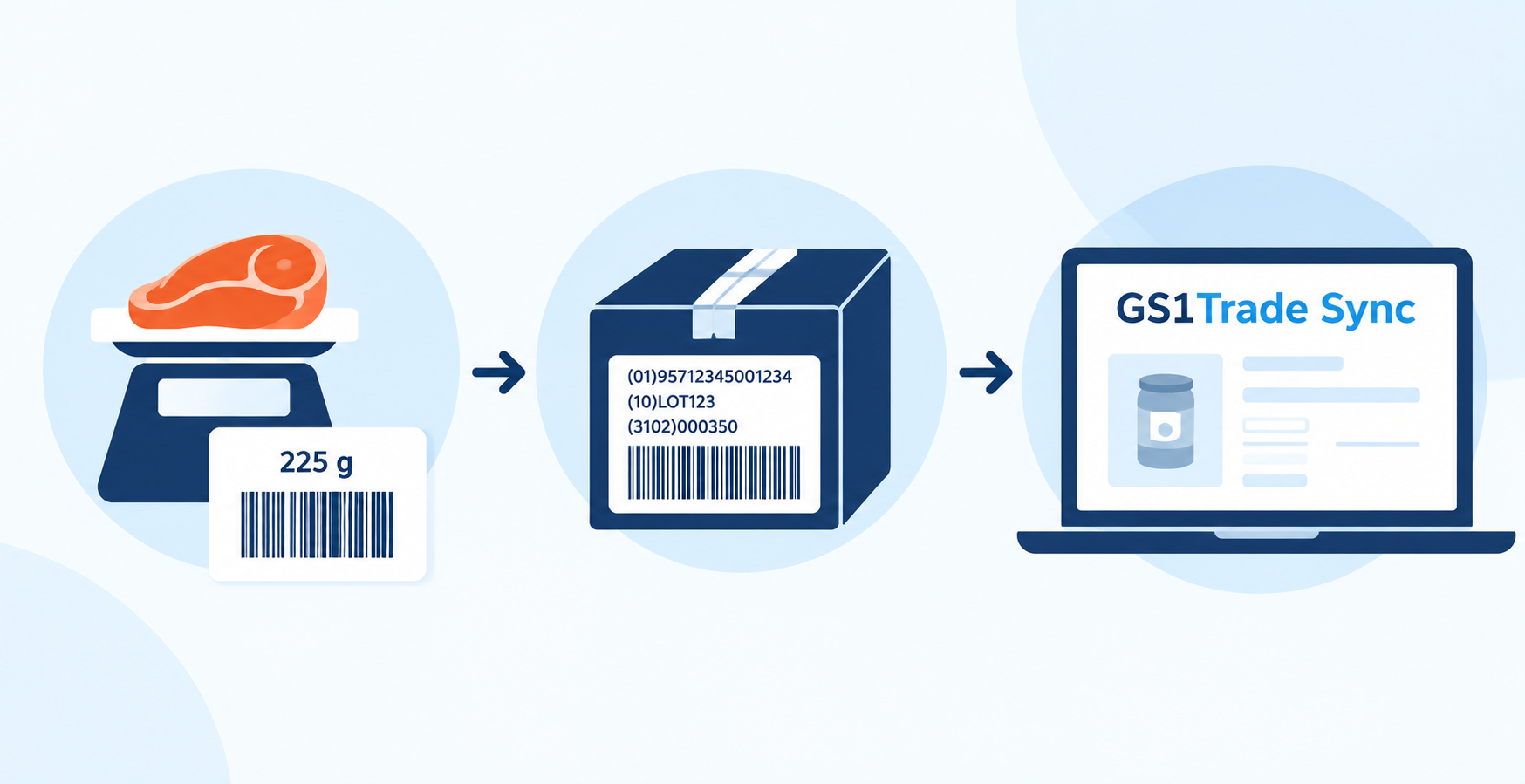
How to create weight-variable barcodes and products
Learn how to generate barcode numbers for variable-weight sales units and cases, and how to set up your products correctly in GS1Trade Sync.
This is some text inside of a div block.
GS1 Trade Packaging ikon - grøn cirkel med  illustration af en åben papkasse
Trade Sync ikon - en lyserød cirkel med en illustration af tre cirkler ovenpå hinanden i en cylinder
Exact ikon - en solgul cirkel med en illustration af et forstørrelsesglas
Image ikon - en lyselilla cirkel med en illustration af et kamera i midten
Transact ikon - en lyseblå cirkel med en illustration af et stykke papir med tekst og en stjerne på
GLN ikon - en orange cirkel med en illustration af et lokationssymbol
Logo til Activate service grøn cirkel med grafik af papir med tekst og check-mærker
GTIN ikon - en grøn cirkel med en illustration af fem lodrette streger som en stregkode
|
Videokamera ikon i en mørkeblå cirkel
Ikon for læsetid - en mørkeblå cirkel med fire horisontale streger der indikerer tekst
 min
User guide for 2D barcodes that scan every time
Get the size, placement, light zone, contrast, and print quality right to ensure your 2D barcode scans correctly.
This is some text inside of a div block.
GS1 Trade Packaging ikon - grøn cirkel med  illustration af en åben papkasse
Trade Sync ikon - en lyserød cirkel med en illustration af tre cirkler ovenpå hinanden i en cylinder
Exact ikon - en solgul cirkel med en illustration af et forstørrelsesglas
Image ikon - en lyselilla cirkel med en illustration af et kamera i midten
Transact ikon - en lyseblå cirkel med en illustration af et stykke papir med tekst og en stjerne på
GLN ikon - en orange cirkel med en illustration af et lokationssymbol
Logo til Activate service grøn cirkel med grafik af papir med tekst og check-mærker
GTIN ikon - en grøn cirkel med en illustration af fem lodrette streger som en stregkode
|
Videokamera ikon i en mørkeblå cirkel
Ikon for læsetid - en mørkeblå cirkel med fire horisontale streger der indikerer tekst
 min
How to get started with switching from 1D to 2D barcodes
Get an overview of the key decisions and preparations required when transitioning from traditional 1D barcodes to 2D barcodes.
This is some text inside of a div block.